
Learn how you can manage your affiliate’s enrolment and registration, update their details and request their removal from our roll and registers.
Get started
To manage your affiliates:
- Go to AUSTRAC Online.
- Log in with your username and password.
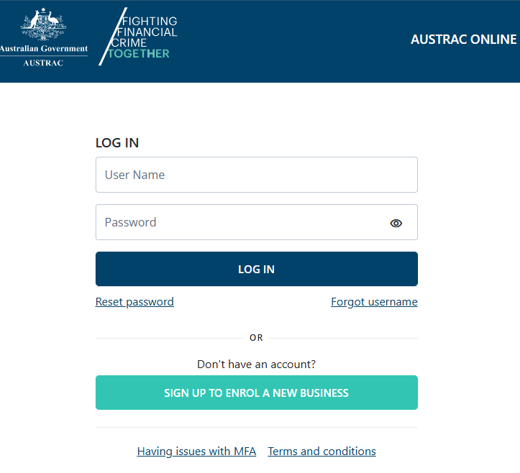
- If you’re a user for more than one reporting entity the screen below will appear.
- Select the business that contains the affiliates.

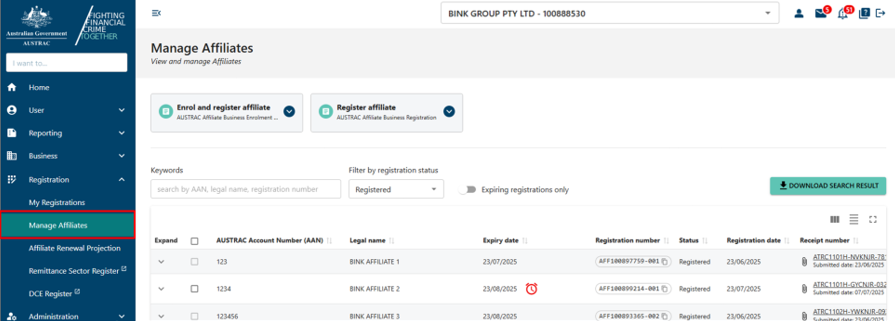
- Select Manage Affiliates in the Registration menu. All the functions in this guide start from this area.
Enrolling an affiliate
You can use the ‘Manage affiliates’ section to enrol an affiliate. You only need to enrol affiliates who are not currently enrolled on AUSTRAC’s Reporting Entity Roll (RE Roll). Select Enrol a new affiliate.
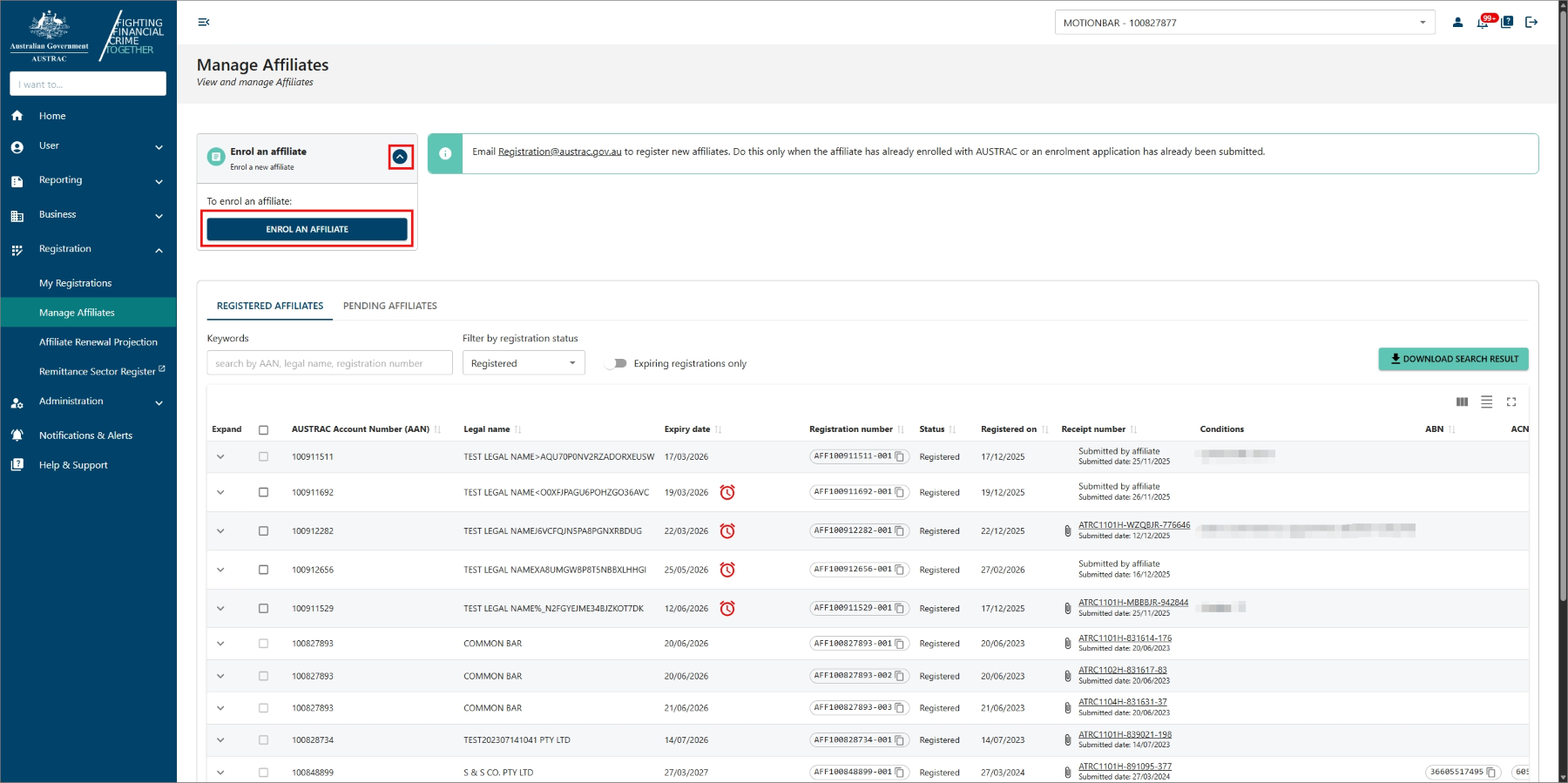
- Complete all sections on the form.
- When you reach the ‘Summary and review’ section, review everything that you entered in the previous sections.
- If you need to make any changes you will need to select Previous to navigate back to the relevant section of the form.
- Select Next
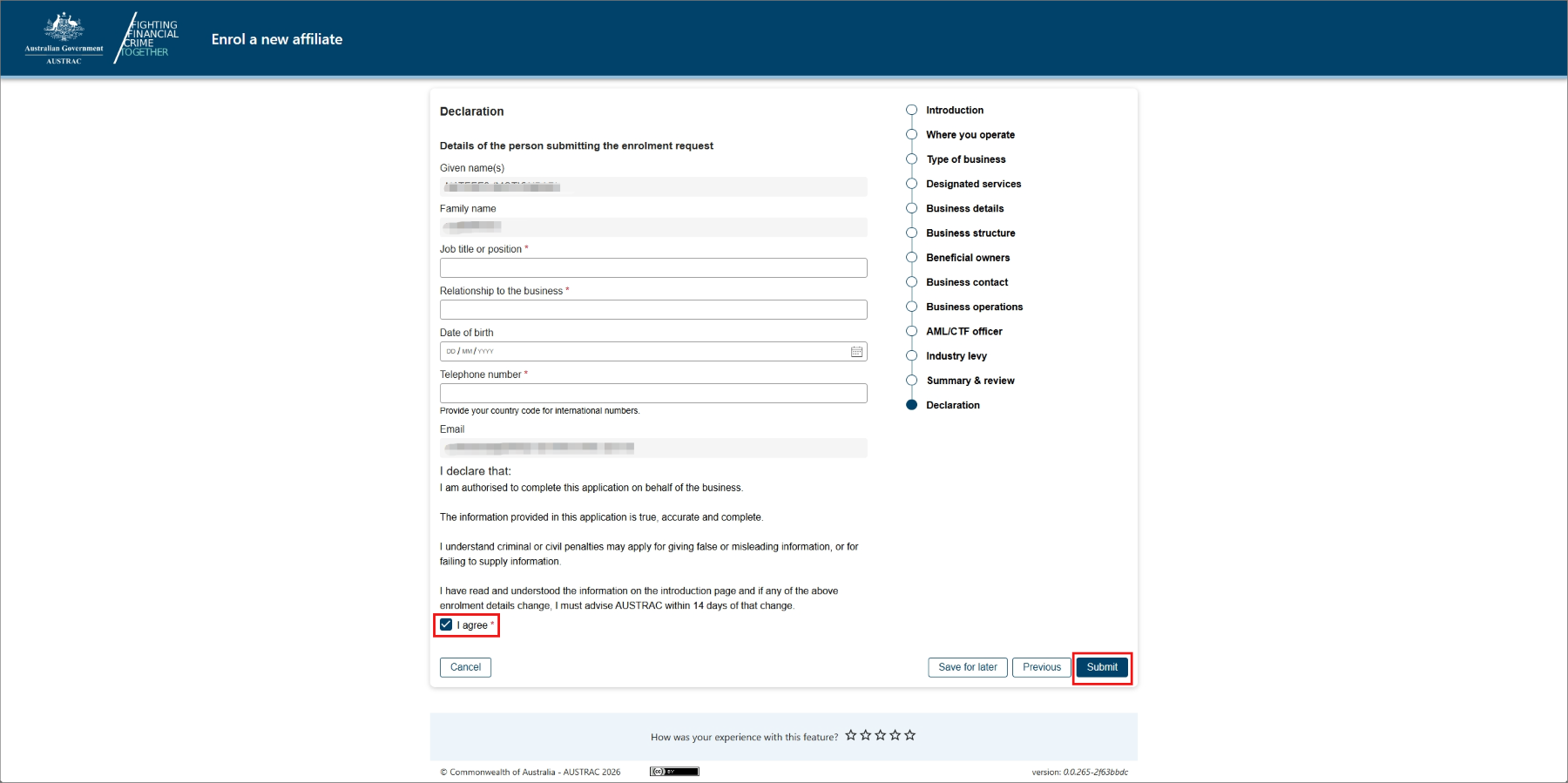
- On the declaration page:
- Complete the section Details of the person submitting the form
- Check the I agree box to agree with the declaration.
- Select Submit when you’re ready to submit your form
- Upon submission, you will see a confirmation page that includes your submission receipt number. You can quote this for any enquiries about your submission.
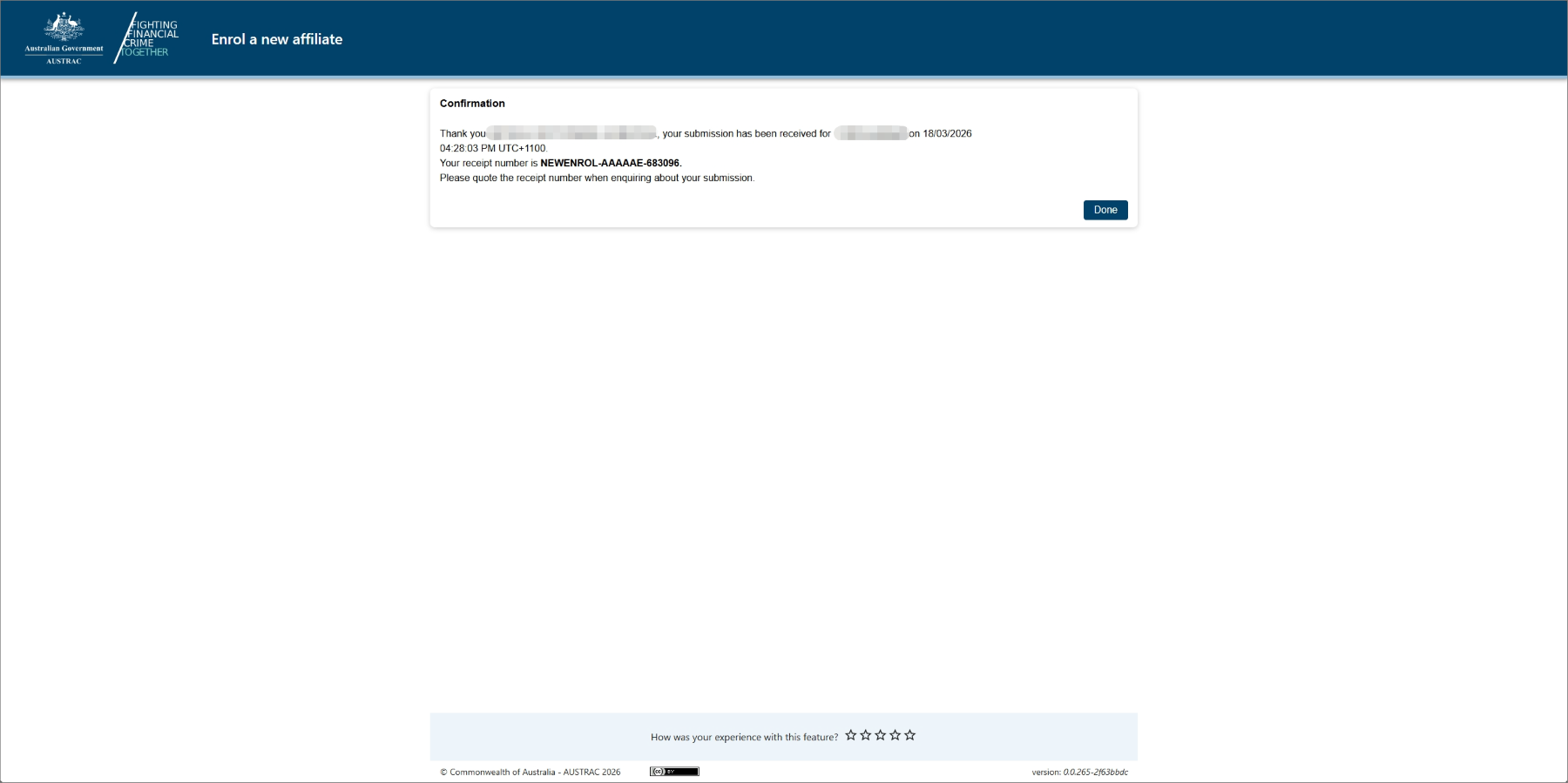
- You’ll also receive a submission confirmation email that contains the submission receipt number, submission date and time. The email will also contain the affiliate’s unique AUSTRAC Account Number (AAN), which you can refer to in any correspondence with us moving forward. You can also access a copy of the submission details under the Submissions tab in the ‘Business Profile’ sub-menu within the Business menu.
Register an affiliate
Once the affiliate is enrolled with AUSTRAC and is on the RE Roll, you must complete and submit the relevant registration form in AUSTRAC Online to register the reporting entity as an affiliate in your remittance network.
Update an affiliate’s enrolment (Update Affiliate Enrolment)
To update an affiliate’s details:
- Select the drop-down arrow next to an affiliate to view more details.
- Expand the ‘Update affiliate box’.
- Select Update affiliate enrolment.
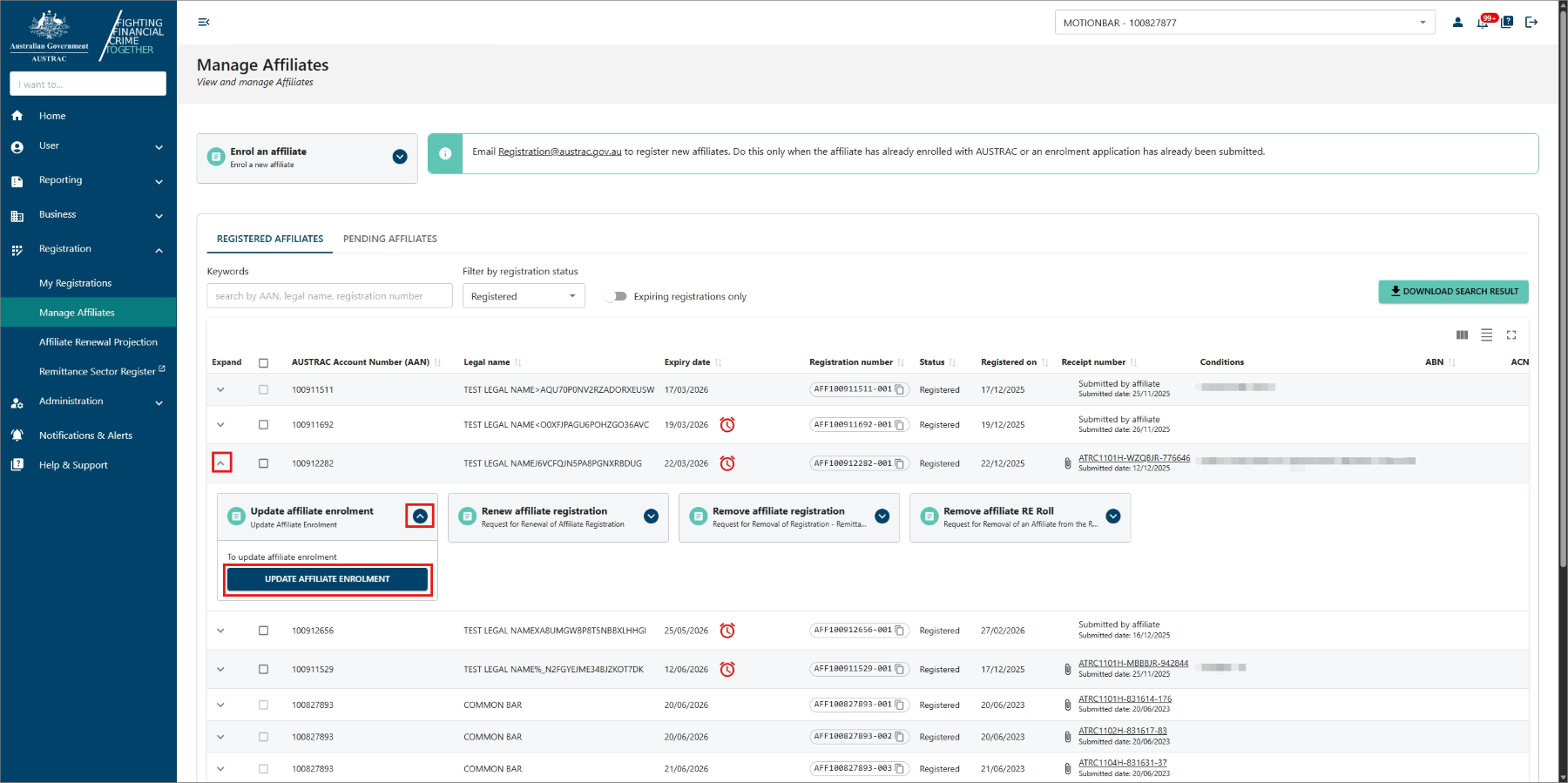
- Navigate through the pages in the form and update the relevant sections or details.
- When you reach the ‘Summary and review’ section, review everything that you entered in the previous sections.
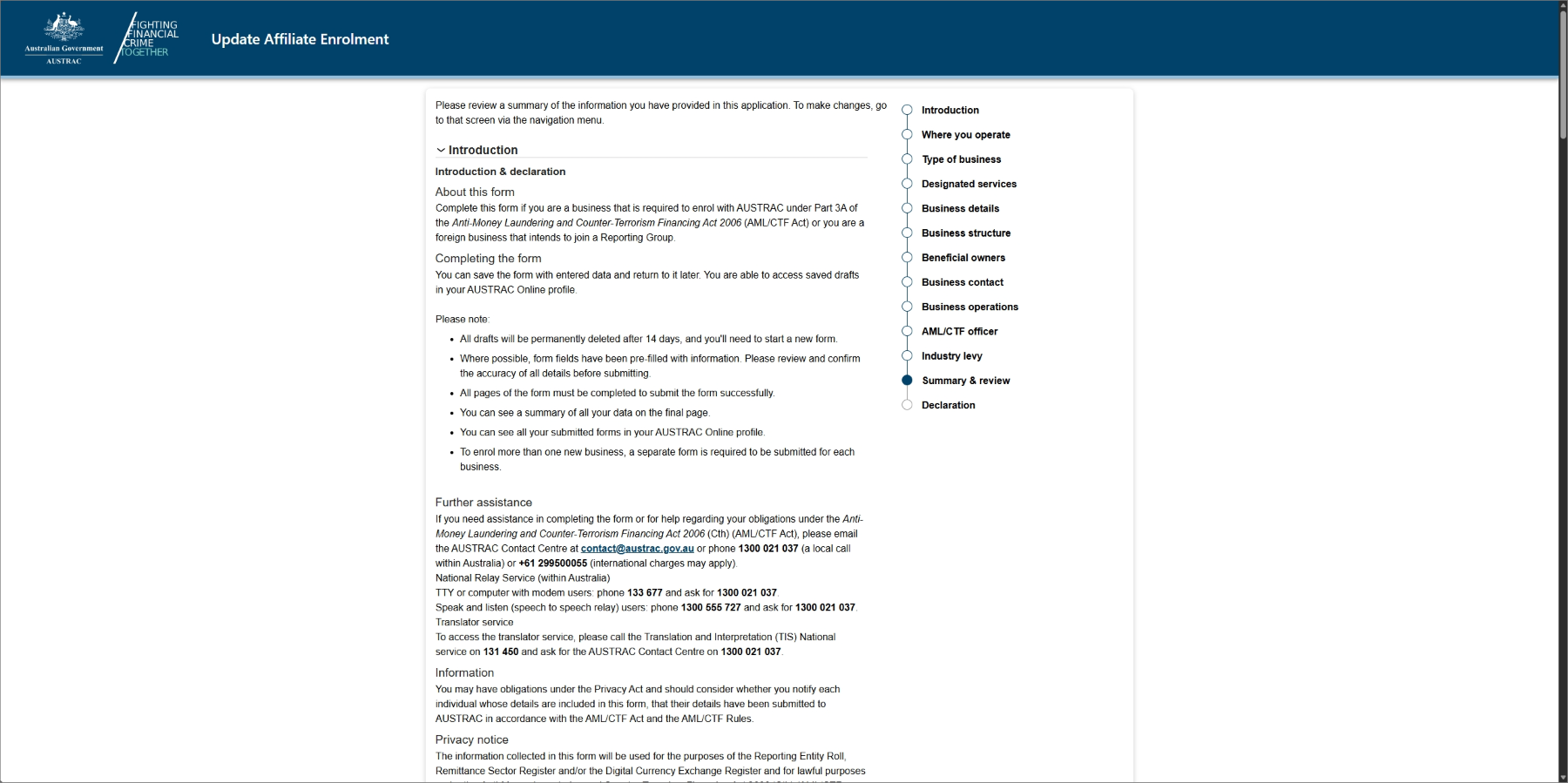
- Select the Previous button to navigate back to the relevant section in the form to make any changes.
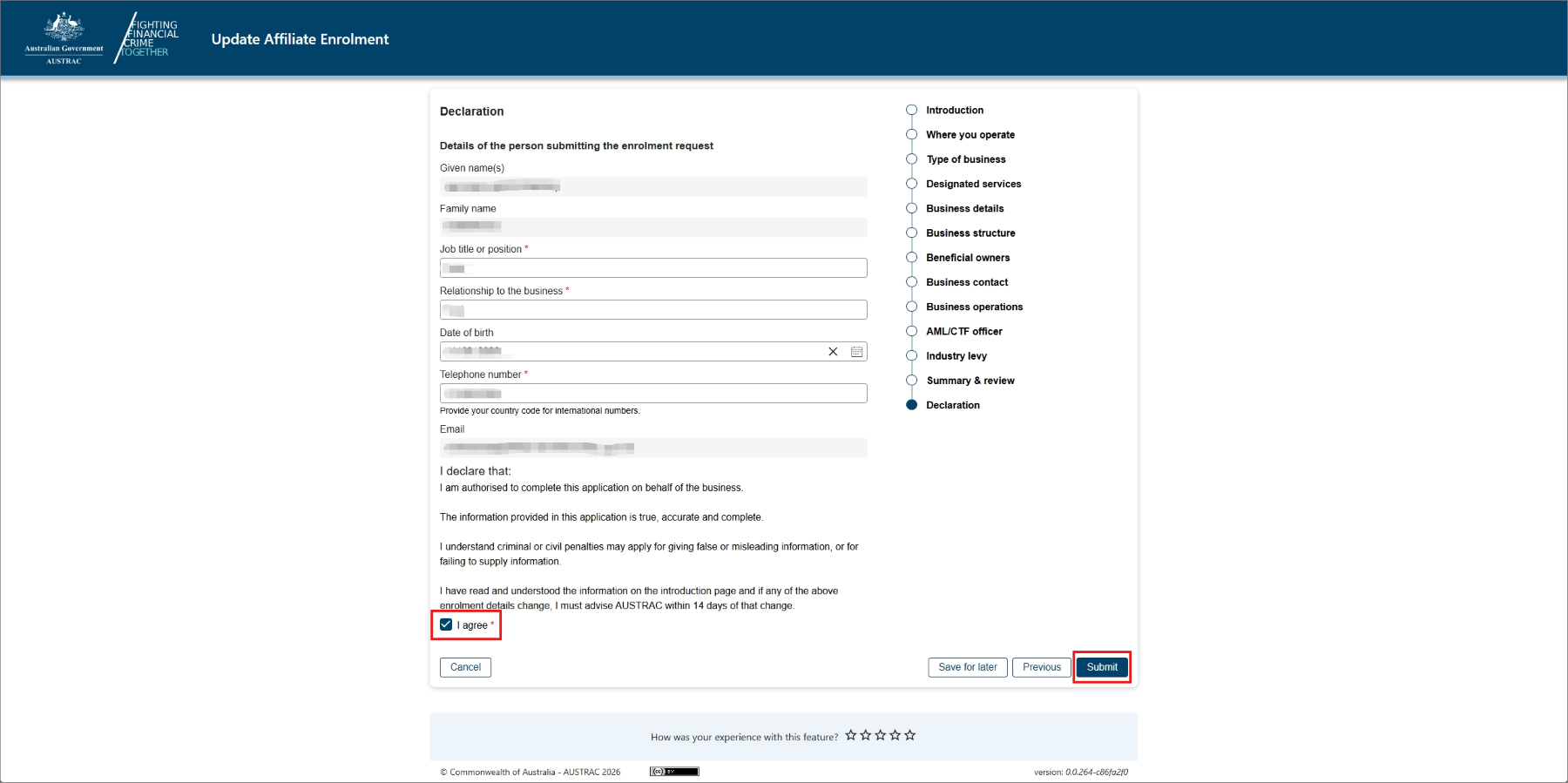
- On the Submit page:
- Complete the section Details of the person submitting the form
- Check the I agree box to agree with the declaration.
- Select Submit when you’re ready to submit your form.
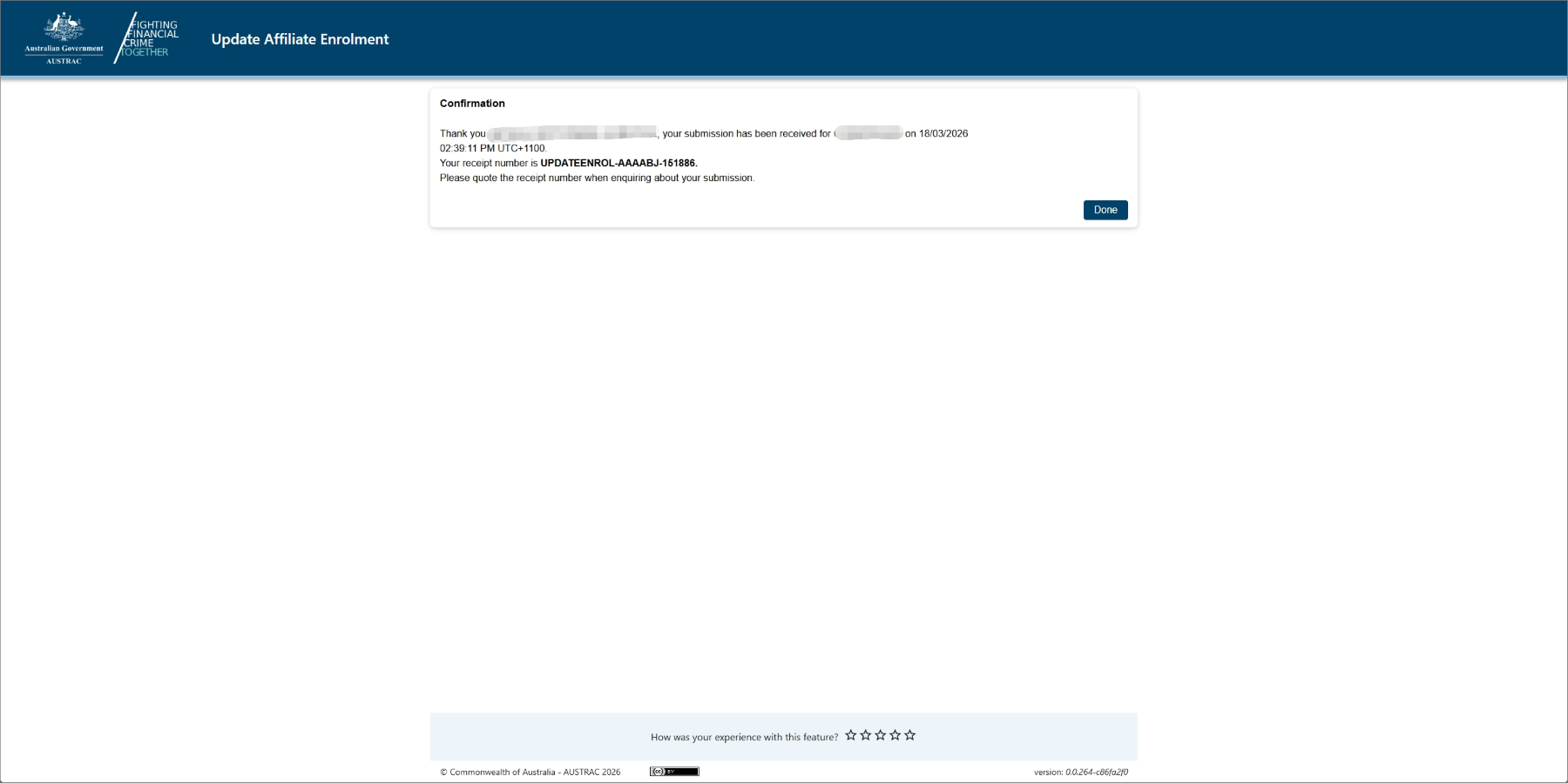
- Upon submission, you will see a confirmation page that includes your submission receipt number. You can quote this for any enquiries about your submission.
Renew an affiliate’s registration
Registration expires after 3 years. You must renew any affiliate registrations so they can keep providing remittance or virtual asset services. You can renew registrations between one and 90 days before expiry.
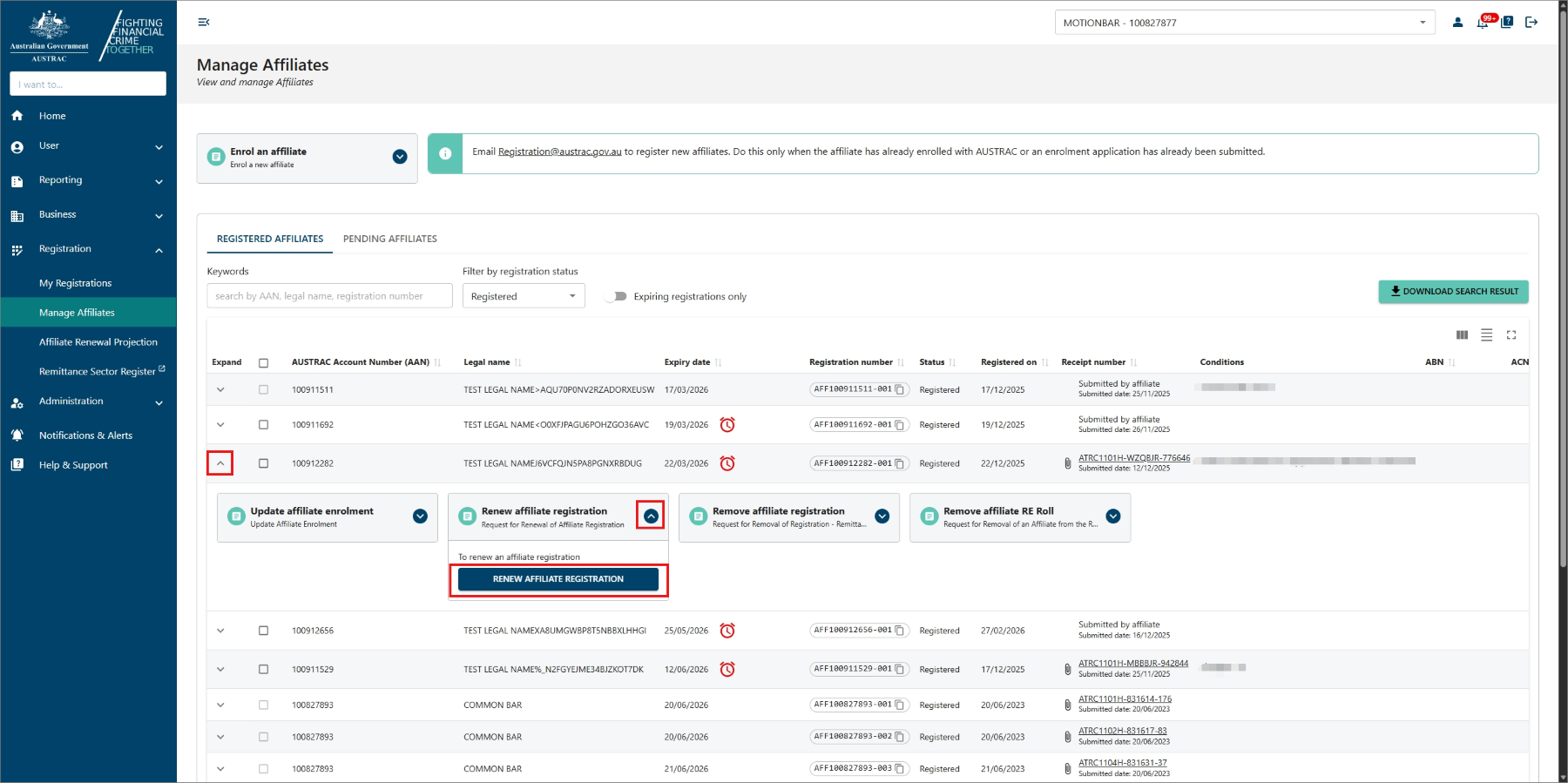
- See if the affiliate is within the renewal period using the ‘expiry date’ column. There will be a red clock icon if it is within the renewal period.
- Select the drop-down arrow next to an affiliate to view more details.
- Expand the ‘Renew affiliate registration’ box.
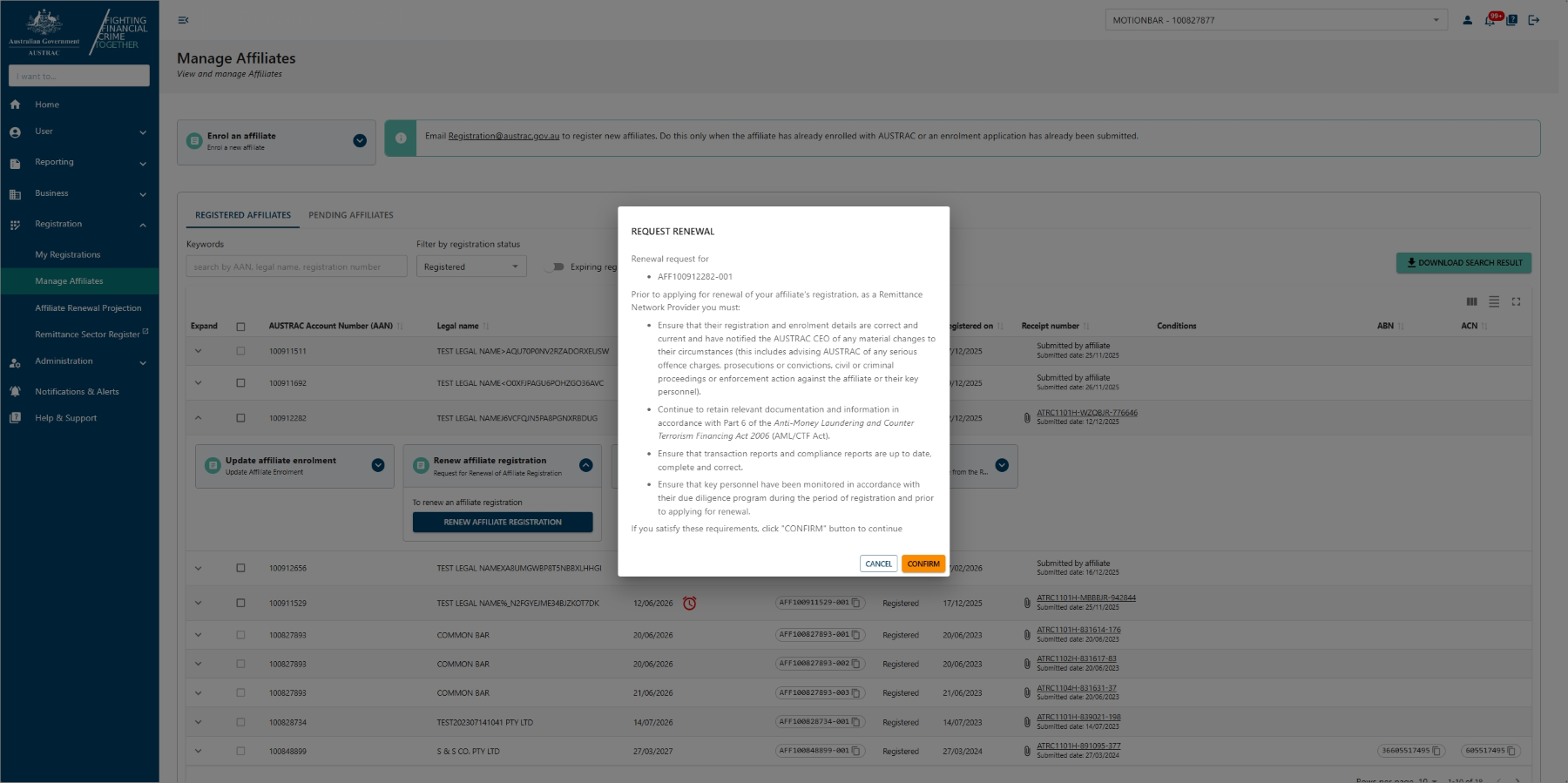
- Select Renew affiliate registration.
- Select Confirm to open the renewal form.
- Complete all sections of the form.
- Check the boxes to confirm the renewal request.
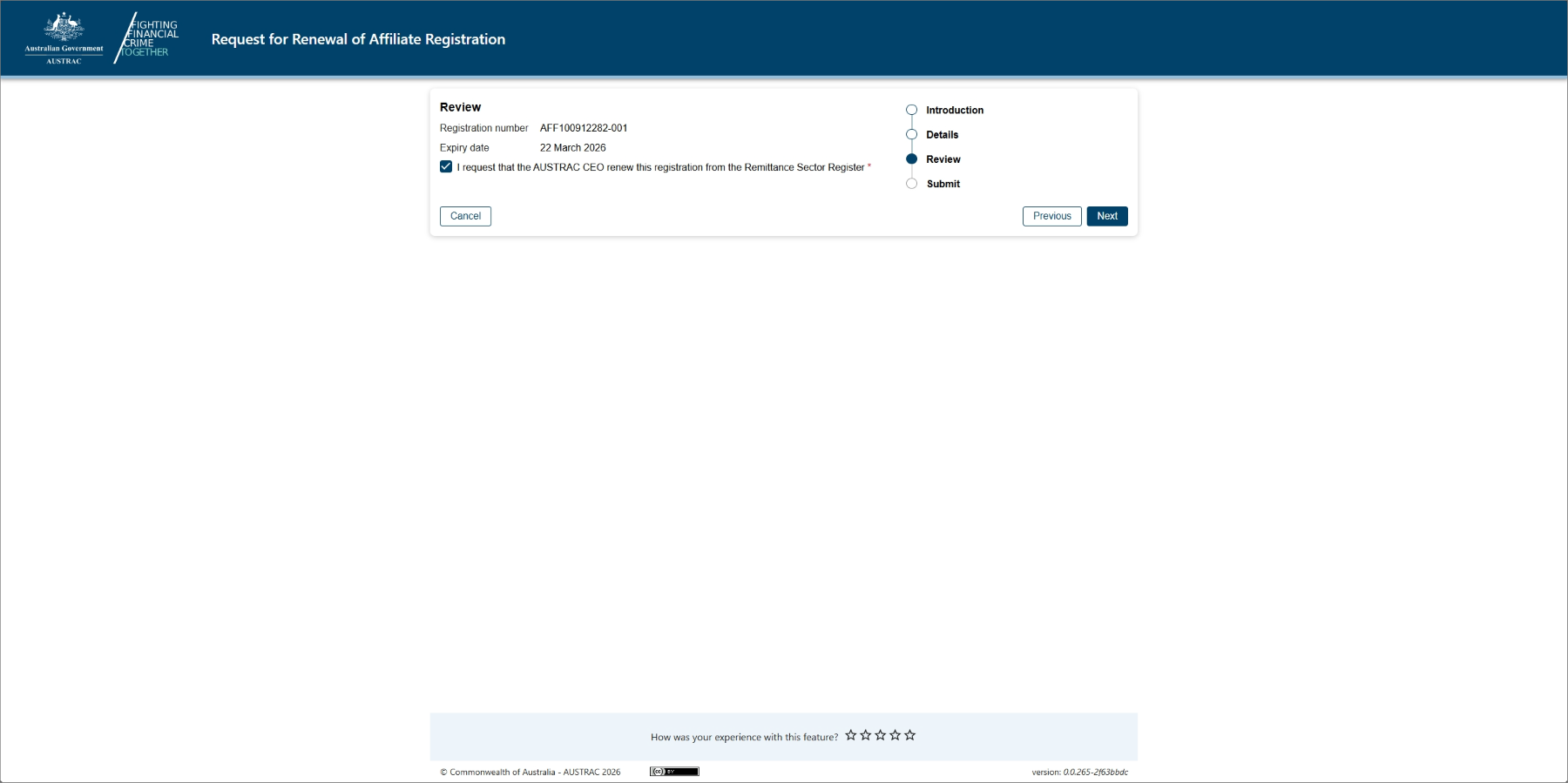
- Select Continue to go to the declaration page.
- When you’re ready to submit your form, select Submit.
- Upon submission, you will see a confirmation page that includes your submission receipt number. You can quote this for any enquiries about your submission.
- You’ll also receive a submission confirmation email that contains the submission receipt number, submission date and time. You can also access a copy of the submission details under the Submissions tab in the ‘Business Profile’ sub-menu within the Business menu.
Remove an affiliate from the Reporting Entity Roll (Remove affiliate RE Roll)
To remove an affiliate from the Reporting Entity Roll:
- Select the drop-down arrow next to an affiliate to view more details.
- Expand the ‘Remove affiliate RE Roll’ box.
- Select Remove affiliate RE Roll.
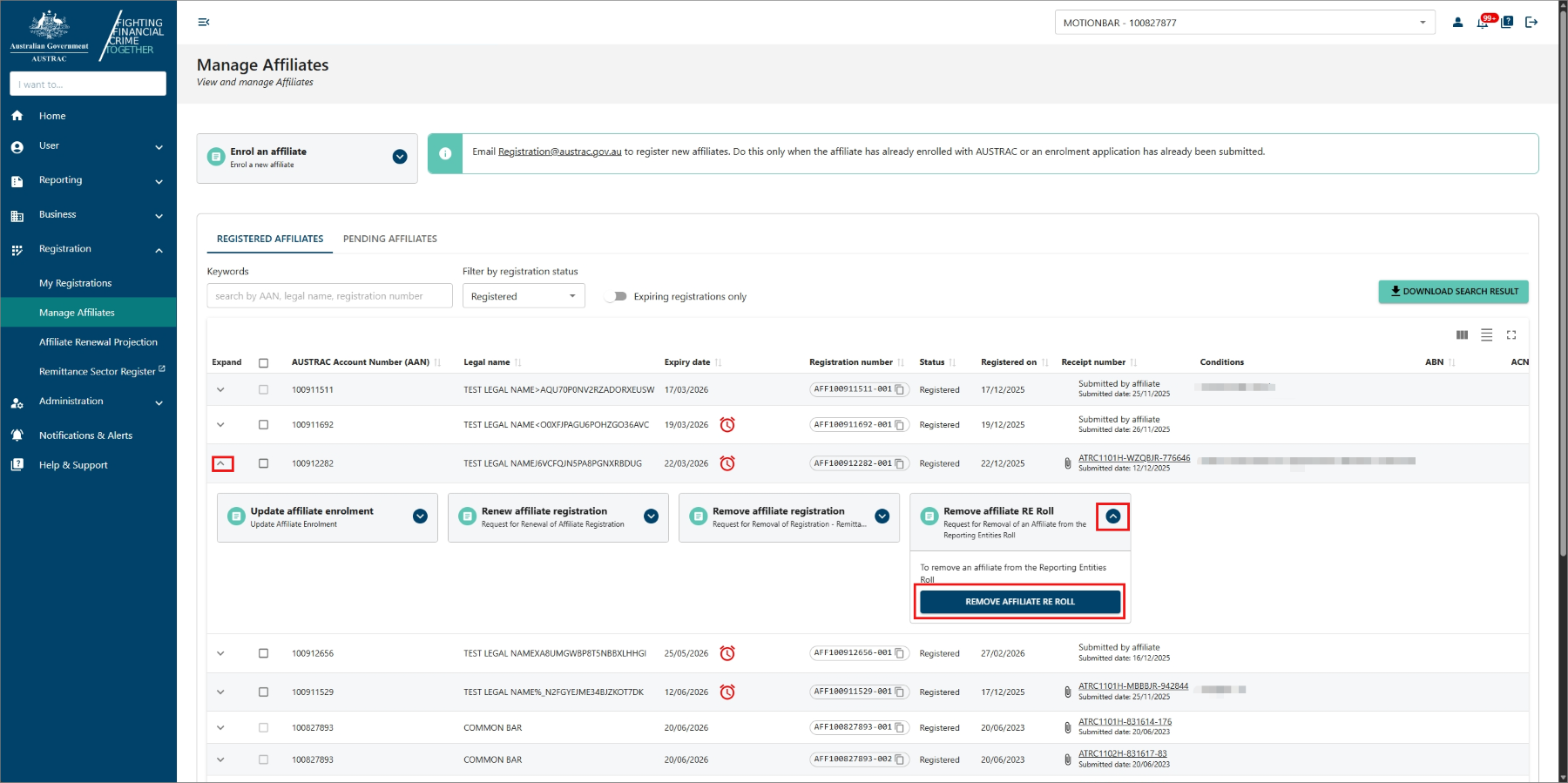
- Proceed through all sections of the form, ensuring all the business details are correct.
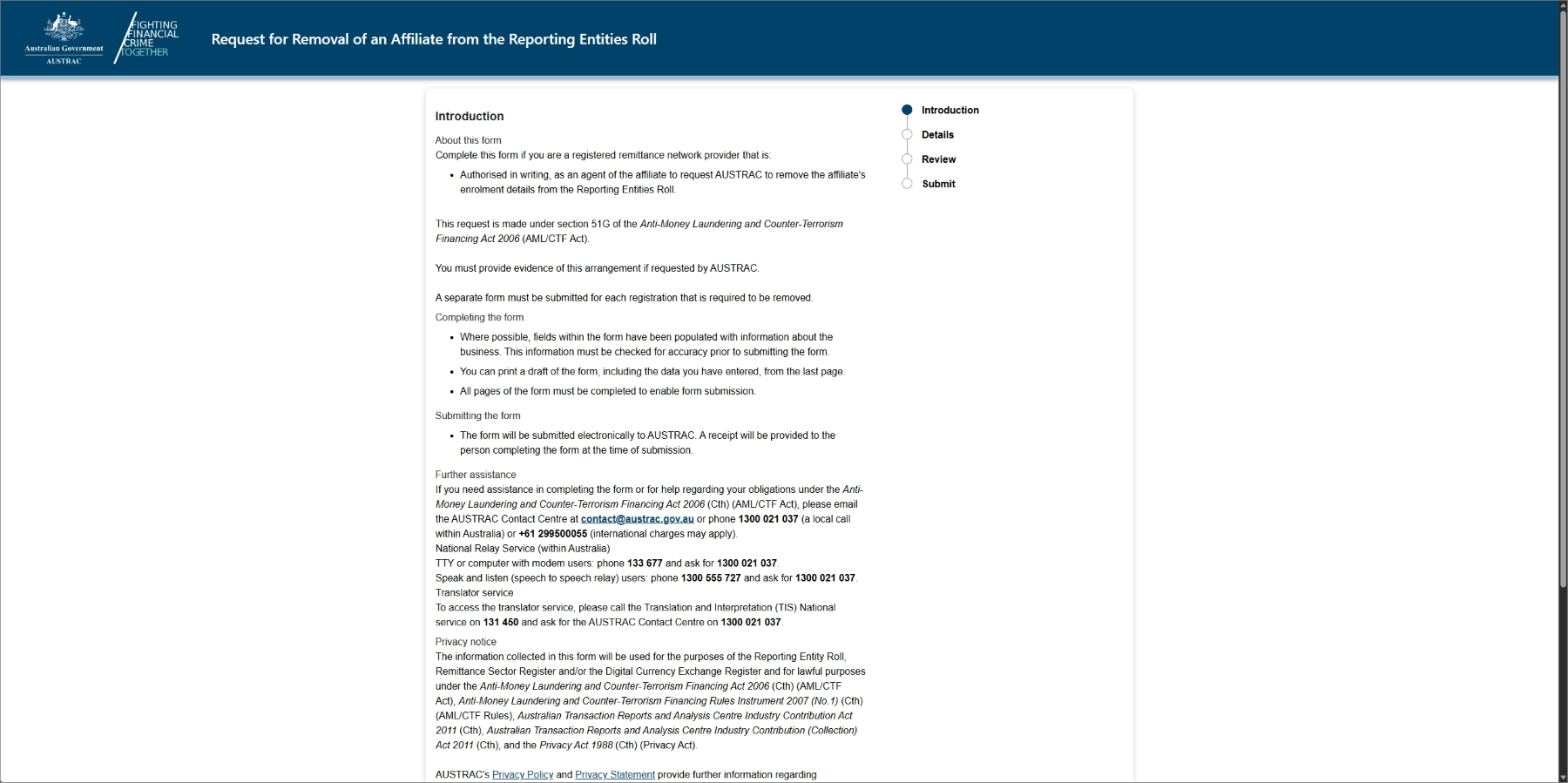
- Select Next to navigate to the Review section of the form.
- Confirm the removal request section by ticking the box.
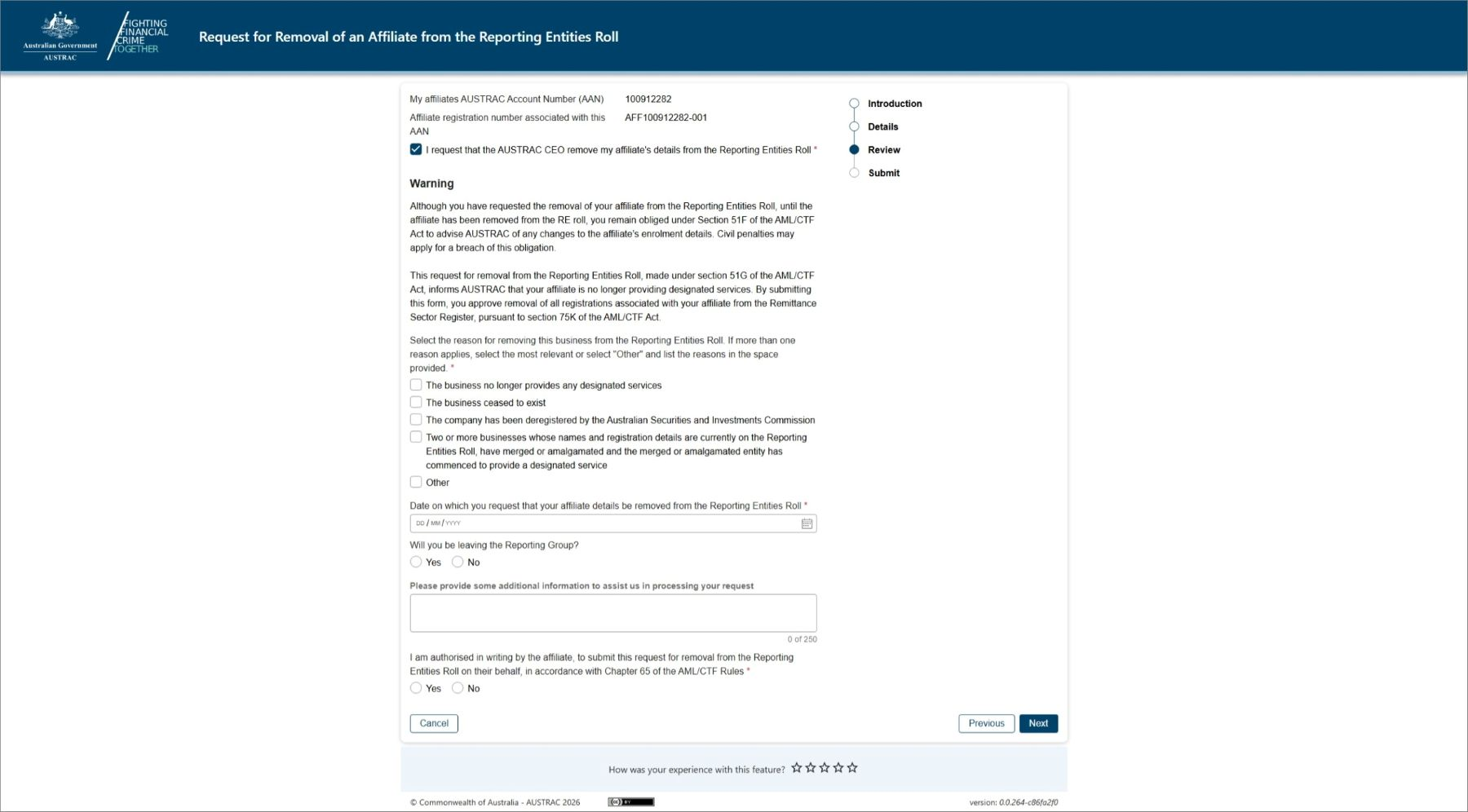
- Select Next.
- On the submit page:
- Complete the section Details of the person completing this form.
- Check the I agree box to agree with the declaration.
- Select Submit when you’re ready to submit your form.
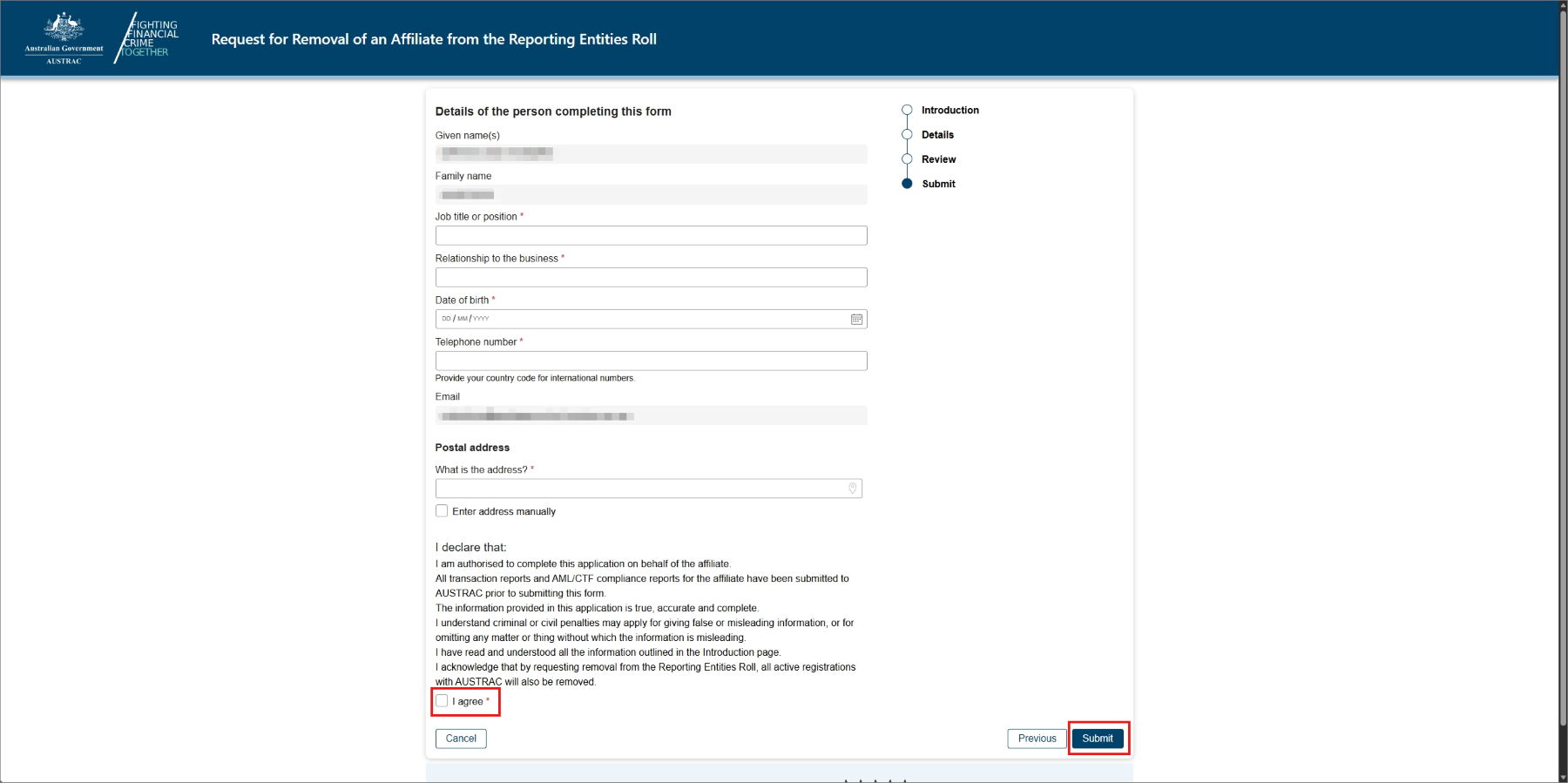
- Upon submission, you will see a confirmation page that includes your submission receipt number. You can quote this for any enquiries about your submission.
- You’ll also receive a submission confirmation email that contains the submission receipt number, submission date and time. You can also access a copy of the submission details under the Submissions tab in the ‘Business Profile’ sub-menu within the Business menu.
Remove an affiliate from the remittance sector register (Remove affiliate registration)
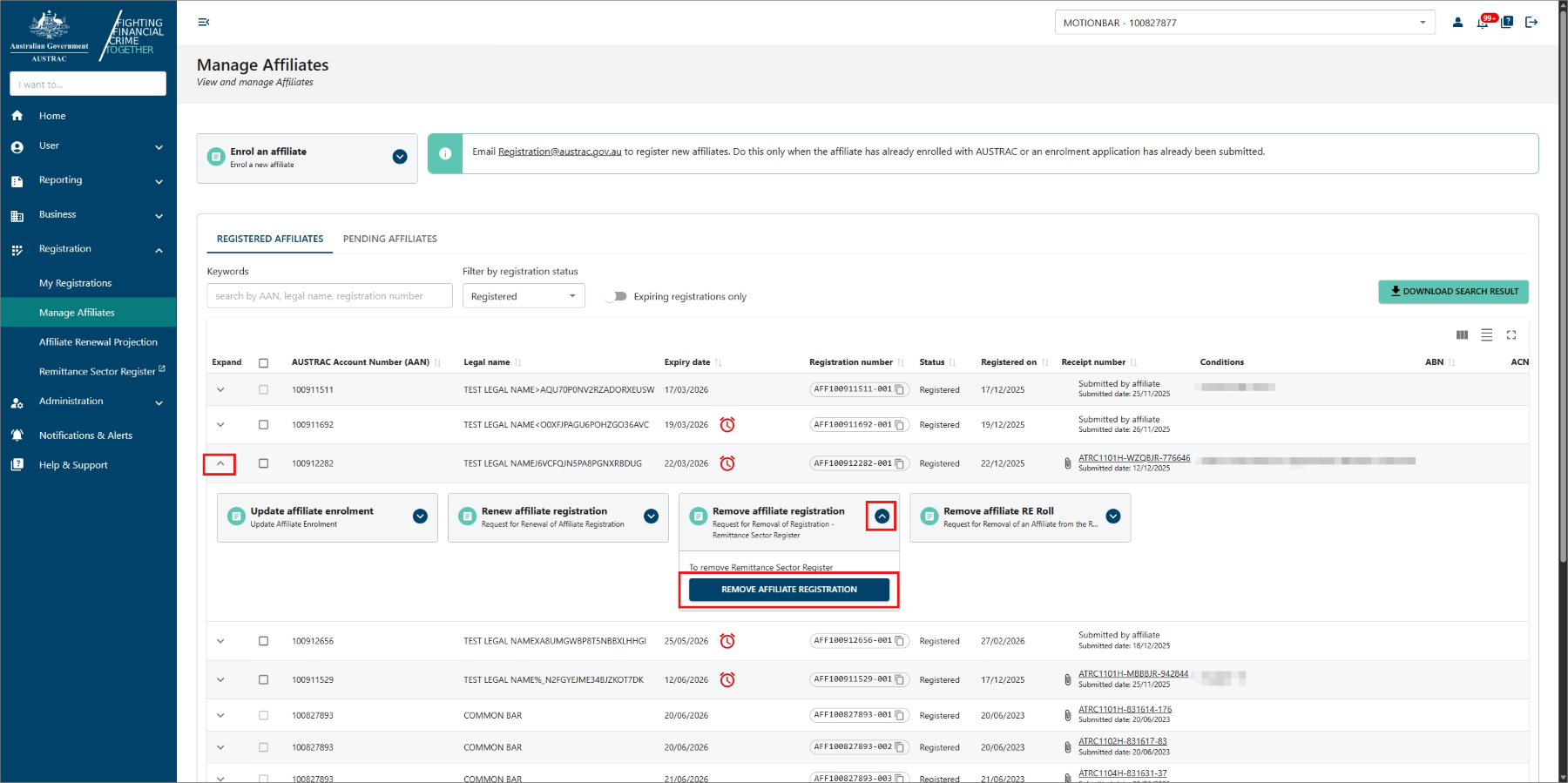
To remove an affiliate from the remittance sector register:
- Select the drop-down arrow next to an affiliate to view more details.
- Expand the ‘Remove affiliate registration’ box.
- Select Remove affiliate registration.
- Proceed through all sections of the form, ensuring all the business details are correct.
- Select Next to navigate to the Review section of the form.
- Confirm the removal request section by ticking the box on the Review page.
- Select Next.
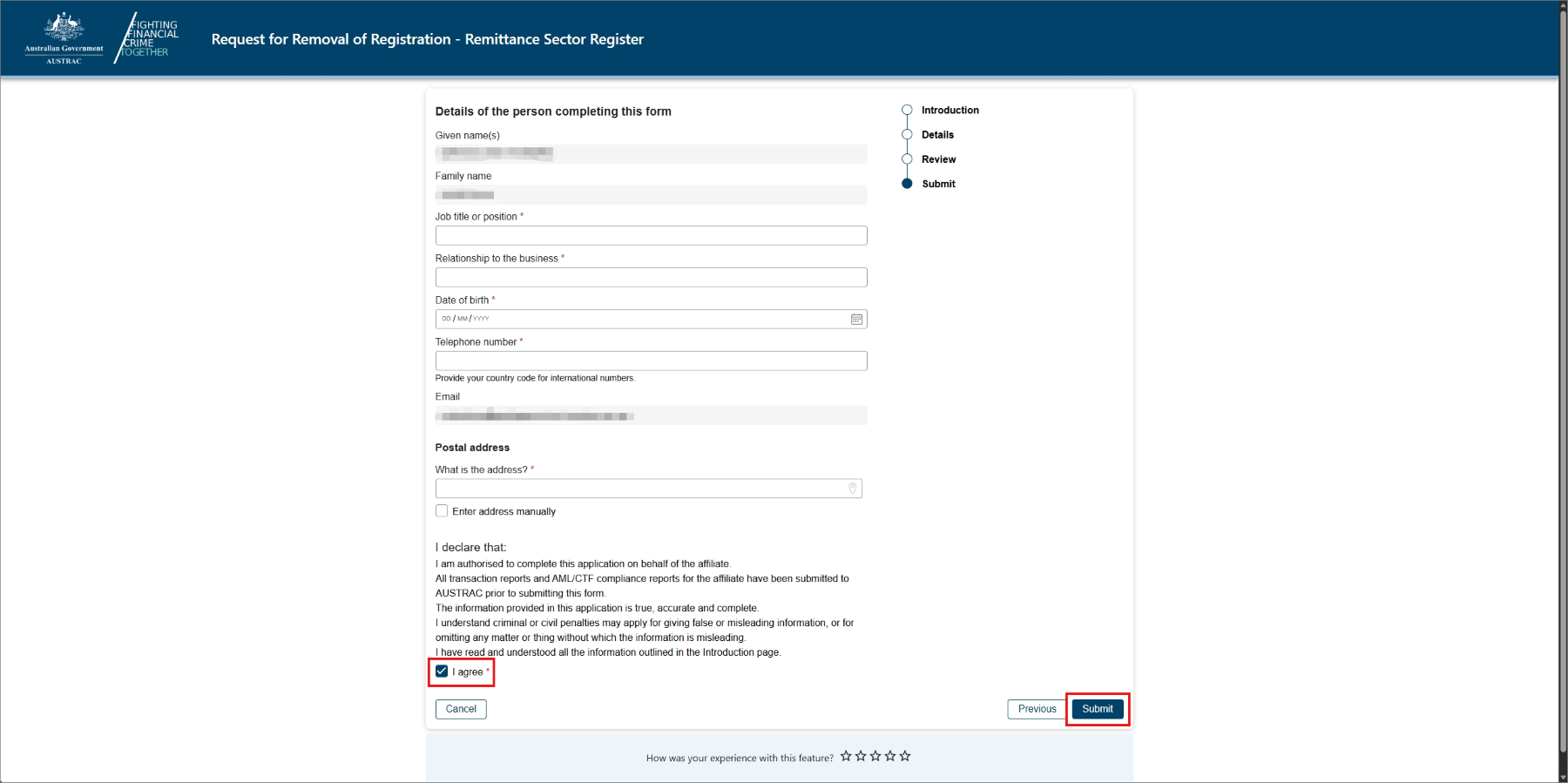
- On the submit page:
- Complete the section Details of the person completing this form.
- Check the I agree box to agree with the declaration.
- Select Submit when you’re ready to submit your form.
- Upon submission, you will see a confirmation page that includes your submission receipt number. You can quote this for any enquiries about your submission.
- You’ll also receive a submission confirmation email that contains the submission receipt number, submission date and time. You can also access a copy of the submission details under the Submissions tab in the ‘Business Profile’ sub-menu within the Business menu.
This guidance sets out how we interpret certain Australian legislation, along with associated Rules and regulations. Australian courts are ultimately responsible for interpreting these laws and determining if any provisions of these laws are contravened.
The examples and scenarios in this guidance are meant to help explain our interpretation of these laws. They’re not exhaustive or meant to cover every possible scenario.
This guidance provides general information and isn't a substitute for legal advice. This guidance avoids legal language wherever possible and it might include generalisations about the application of the law. Some provisions of the law referred to have exceptions or important qualifications. In most cases your particular circumstances must be taken into account when determining how the law applies to you.