
Learn how to manage users in AUSTRAC Online. This includes adding a new user and editing an existing user profile.
As an administrator for your business, learn how to manage your contacts and users.
Your contacts get communications from us, but they won’t be able to access AUSTRAC Online unless they have a user account.
In this guide AUSTRAC Online may be abbreviated to AO.
Access the Manage Users section
To invite users, edit user roles or unlink users associated with your business:
- Select Administration in the left-hand menu.
- Select Manage Users.
How to add a new user
A user account provides login access to AUSTRAC Online.
View our video on how to invite new user.
As an administrator, you can:
- send an invitation to an existing contact associated with the business
- invite a new user for a given email address.
To do this:
- Select Invite New User at the top right of the page.
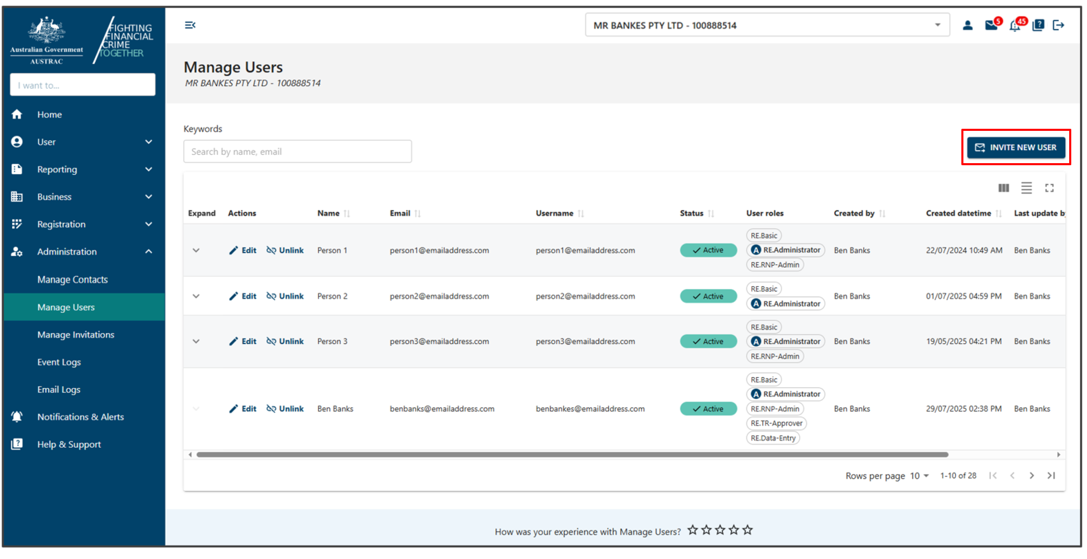
- Enter the new user’s email address.
- If you have multiple business accounts, you can specify which businesses to invite the user to.
- Select the drop-down ‘Select user roles’ to expand it.
- Select the roles and access the permissions your user needs. By default, RE.Basic role is assigned to all users. A minimum of one additional user role must be assigned. Select one or more of the following roles:
- RE.Administrator: has all AO access, except for affiliates related menus
- RE.Data-Entry: can access data entry in transaction reports menu
- RE.RNP-Admin: access to manage affiliates
- RE.TR-Approver: access to approve transaction reports submission and full access to cross-border movement of monetary instruments (CBM-MI)
For detailed access of each user roles, go to user role access.
For details on defining and maintaining transaction reporting function access, go to transaction reporting function access.
View our video on managing user roles.
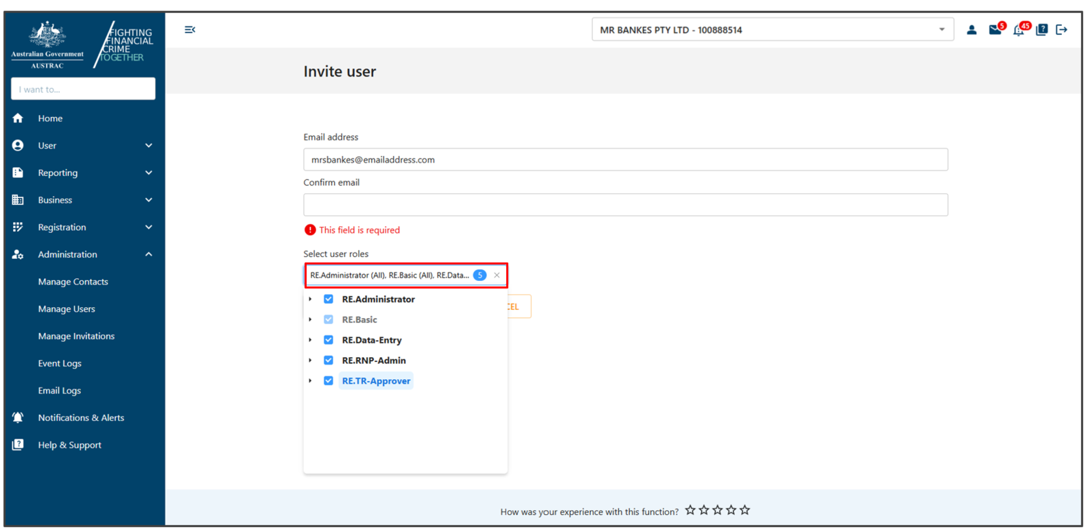
Select Create and send invitation.
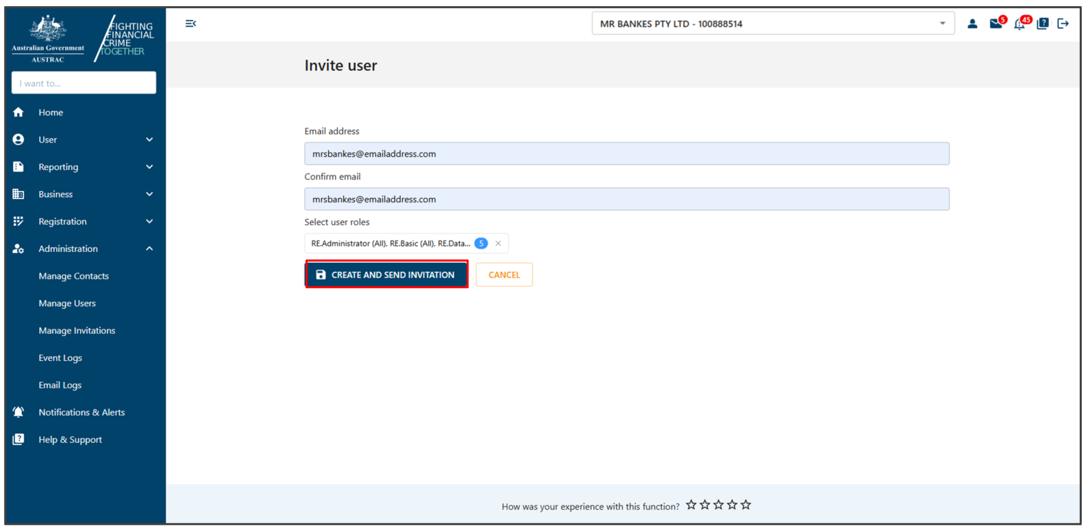
Note: If the new user’s email address is associated with multiple AUSTRAC Online user accounts, you’ll get an error message saying you can’t send an invitation to a shared email address. In this situation:
- Advise the person you’re inviting to assign a unique email address for each AUSTRAC Online user account. This can be done by going to the My User Profile function and updating the email address for the user account.
- For instructions on combining multiple AUSTRAC Online user accounts into one user account email us at contact@austrac.gov.au
Edit an existing user profile
As an administrator, you can edit a user’s roles and access permissions. Users can edit their personal details such as username, given name, family name and email address under the User menu, My User Profile.
To edit a user’s roles and access permissions:
- Go to Manage Users. A list of users will appear.
- Select the user you want to edit by selecting Edit under the Actions column.
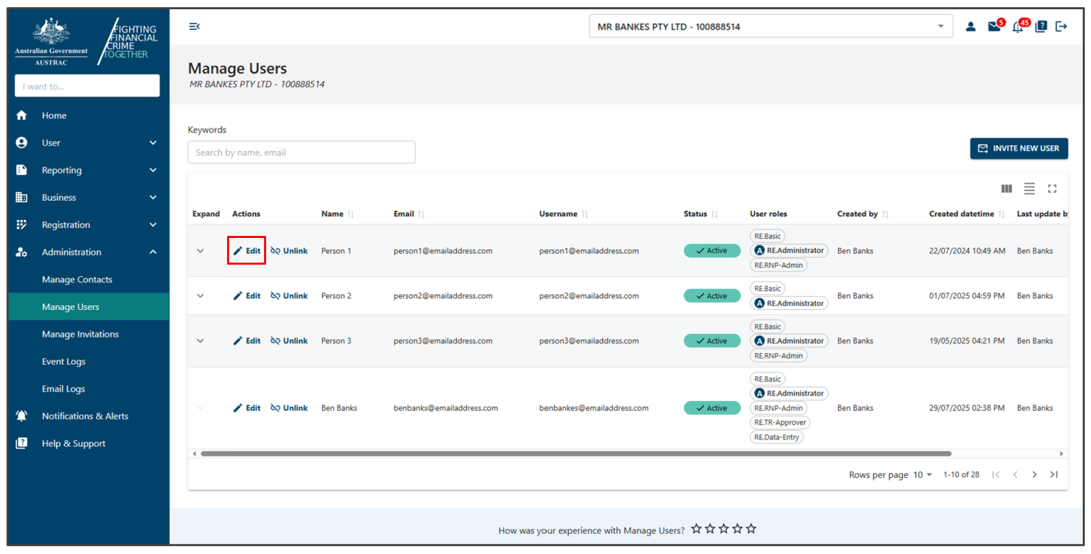
- Select the drop-down Select user roles to expand it.
- Change the roles and access permissions your user needs.
- Select Save.
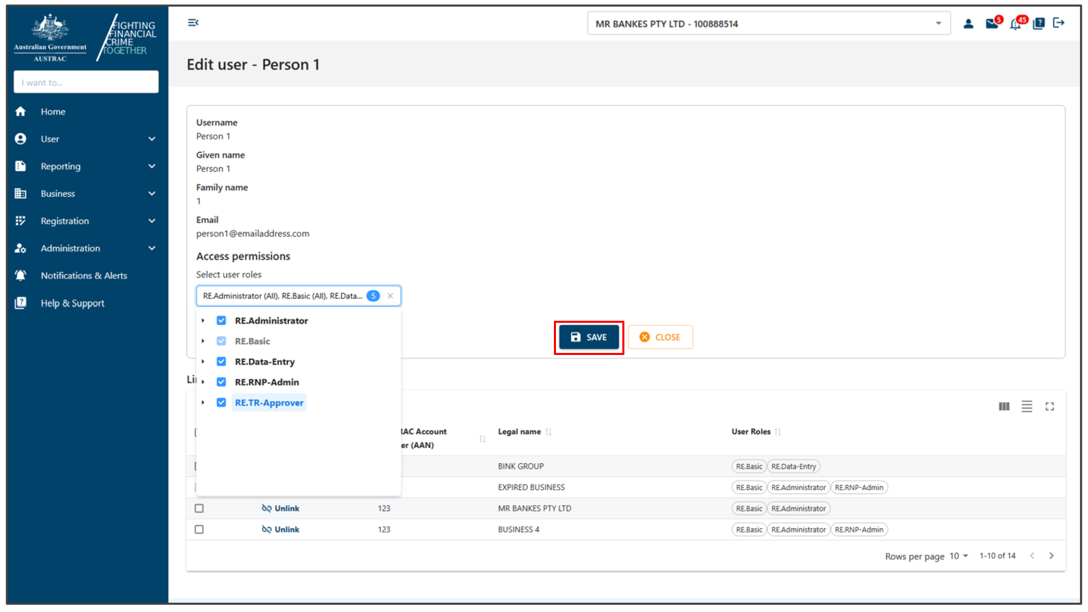
- To unlink the user from the currently linked business, select Unlink next to the business name.
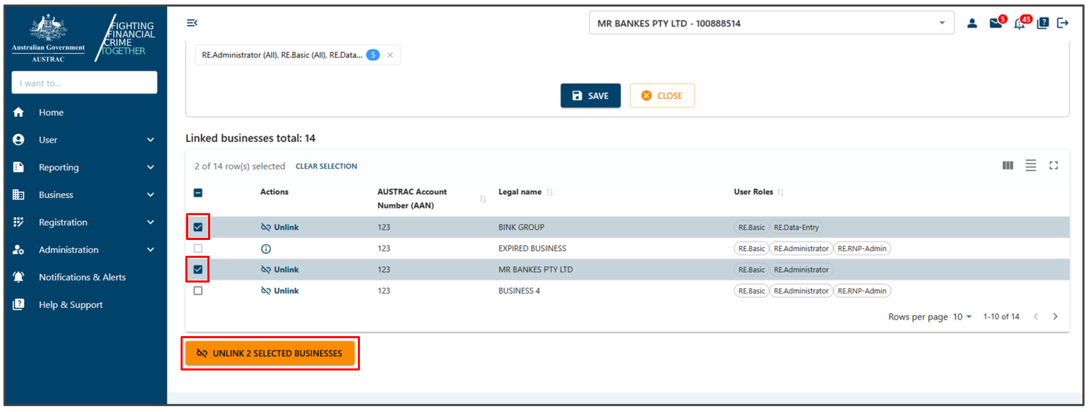
- To unlink the user from multiple linked businesses, tick the box next to each of the business names you want to unlink.
- Select Unlink (x) selected business.
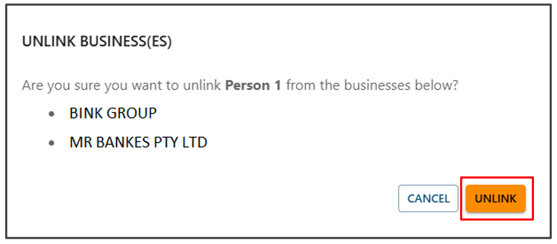
- A message will display asking you to confirm your action.
- Select Unlink if wish to continue.
- Another message will display.
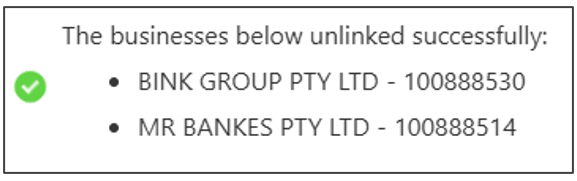
To remove or deactivate a user, unlink them from businesses by selecting Unlink. This will cancel their access. To reconnect a user to a business account, you must send a new user invitation and select the required businesses.
Manage invitations
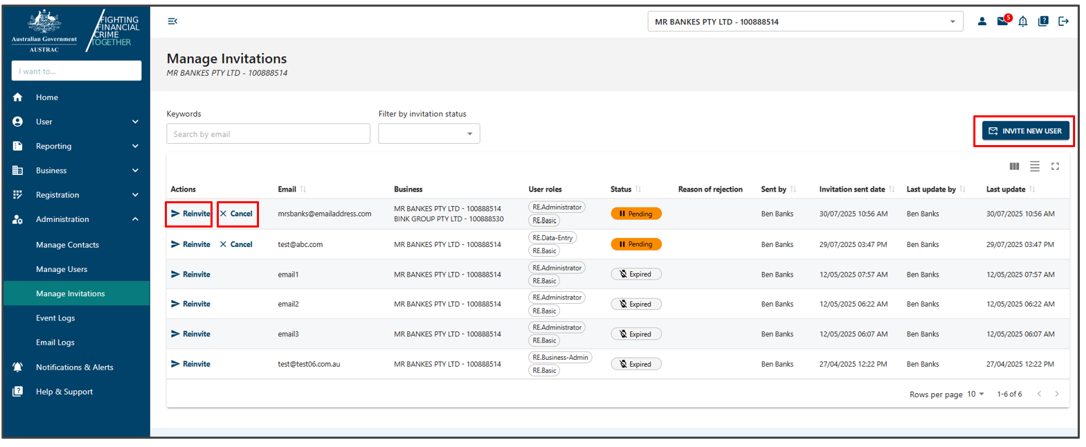
To manage user invitations:
- Select Administration in the left-hand menu.
- Select Manage Users.
You can then invite new users by selecting Invite New User on the top right corner of the page.
The administrator can send an invitation to an email address of a potential new user or existing contact, if they need access to AUSTRAC Online. After the new user accepts the invitation and signs up for a user account, the new user will gain access to those businesses in the invitation with the nominated roles.
You can:
- Select Reinvite if the invitation is Pending, Rejected or Expired.
- Select Cancel if the invitation is Pending.
User role access
AUSTRAC Online has 5 role types
RE.Administrator – this role has full function access to:
- manage and maintain business and registration details and user accounts
- create and submit reports
- oversee the activities of other users
RE.Basic – this role is the default role and must be assigned to all AUSTRAC Online users.
RE.Data-Entry – this role has function access limited to creating and editing transaction reports only. Once a user with this role type assigned has submitted a report for approval, a ‘RE.Administrator’ or ‘RE.TR-Approver’ user will need to review and submit the report to AUSTRAC.
RE.RNP-Admin – this role provides access to manage affiliates by remittance network providers.
RE.TR-Approver – this role has limited function access to submit reports and to oversee the activities of data entry users.
Default access levels
The following table outlines the menu options and functions available for each role type:
|
Role types |
|||||
|---|---|---|---|---|---|
| Menu option/function |
RE.Administrator |
RE.Basic |
RE.Data-Entry |
RE.RNP-Admin |
RE.TR-Approver |
| Home |
Y |
Y |
Y |
Y |
Y |
| User |
Y |
Y |
Y |
Y |
Y |
| My User Profile |
Y |
Y |
Y |
Y |
Y |
| My Favourites |
Y |
Y |
Y |
Y |
Y |
| My User Invitations |
Y |
Y |
Y |
Y |
Y |
| Reporting |
Y |
N |
Y |
N |
Y |
| Transaction Reports |
Y |
N |
Y |
N |
Y |
| Cross Border Movement of Monetary Instruments (CBM-MI) |
Y |
N |
N |
N |
Y |
| Business |
Y |
N |
N |
N |
N |
| Business Profile |
Y |
N |
N |
N |
N |
| Compliance Report |
Y |
N |
N |
N |
N |
| Manage DBG |
Y |
N |
N |
N |
N |
| Enrol New Business |
Y |
N |
N |
N |
N |
| Manage Branches |
Y |
N |
N |
N |
N |
| Manage Agents |
Y |
N |
N |
N |
N |
| Registration |
Y |
Y |
Y |
Y |
Y |
The following table outlines the menu options and functions available for each role type:
|
Role types |
|||||
|---|---|---|---|---|---|
| Menu option/function |
RE.Administrator |
RE.Basic |
RE.Data-Entry |
RE.RNP-Admin |
RE.TR-Approver |
| My Registrations |
Y |
N |
N |
N |
N |
| Manage Affiliates |
N |
N |
N |
Y |
N |
| Affiliate Renewal Projection |
N |
N |
N |
Y |
N |
| Remittance Sector Register |
Y |
Y |
Y |
Y |
Y |
| Administration |
Y |
N |
N |
N |
N |
| Manage Contacts |
Y |
N |
N |
N |
N |
| Manage Users |
Y |
N |
N |
N |
N |
| Manage Invitations |
Y |
N |
N |
N |
N |
| Event Logs |
Y |
N |
N |
N |
N |
| Email Logs |
Y |
N |
N |
N |
N |
| Notifications & Alerts |
Y |
Y |
Y |
Y |
Y |
| Help & Support |
Y |
Y |
Y |
Y |
Y |
This guidance sets out how we interpret certain Australian legislation, along with associated Rules and regulations. Australian courts are ultimately responsible for interpreting these laws and determining if any provisions of these laws are contravened.
The examples and scenarios in this guidance are meant to help explain our interpretation of these laws. They’re not exhaustive or meant to cover every possible scenario.
This guidance provides general information and isn't a substitute for legal advice. This guidance avoids legal language wherever possible and it might include generalisations about the application of the law. Some provisions of the law referred to have exceptions or important qualifications. In most cases your particular circumstances must be taken into account when determining how the law applies to you.