
Find out how to request an amendment or withdrawal of a submitted threshold transaction report (TTR) or suspicious matter report (SMR) in AUSTRAC Online. This includes how to respond to requests initiated by AUSTRAC.
Who can request report amendments or withdrawals
You can manage report amendment and withdrawal requests through AUSTRAC Online.
- Only users with RE.Administrator or RE.TR-Approver roles can:
- request an amendment or withdrawal
- respond to requests initiated by AUSTRAC.
- Data entry users do not have access to report management actions.
How to request report amendment or withdrawal
- Go to AUSTRAC Online.
- Log in with your username and password.
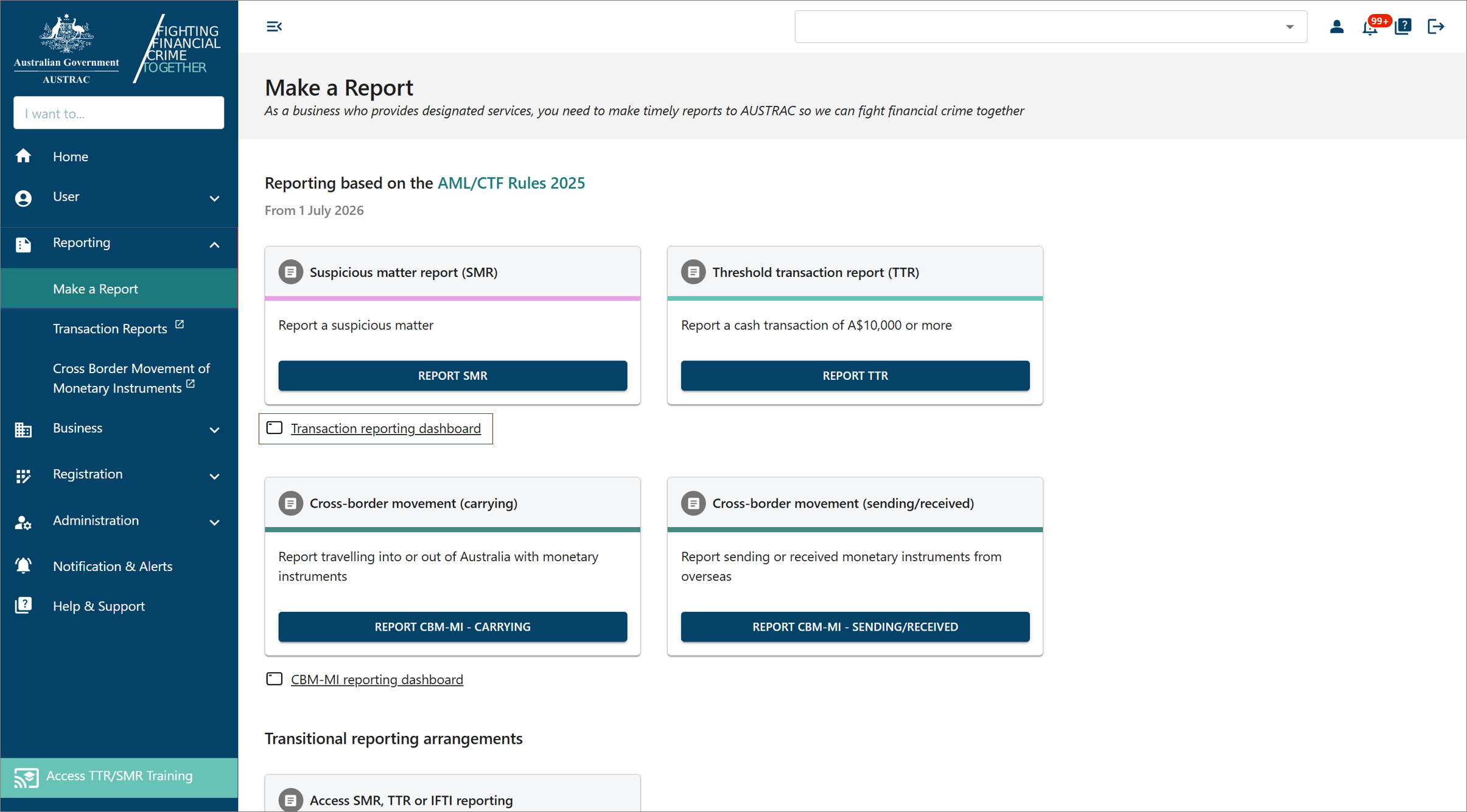
- Select Reporting then Make a Report.
- Select Transaction reporting dashboard.
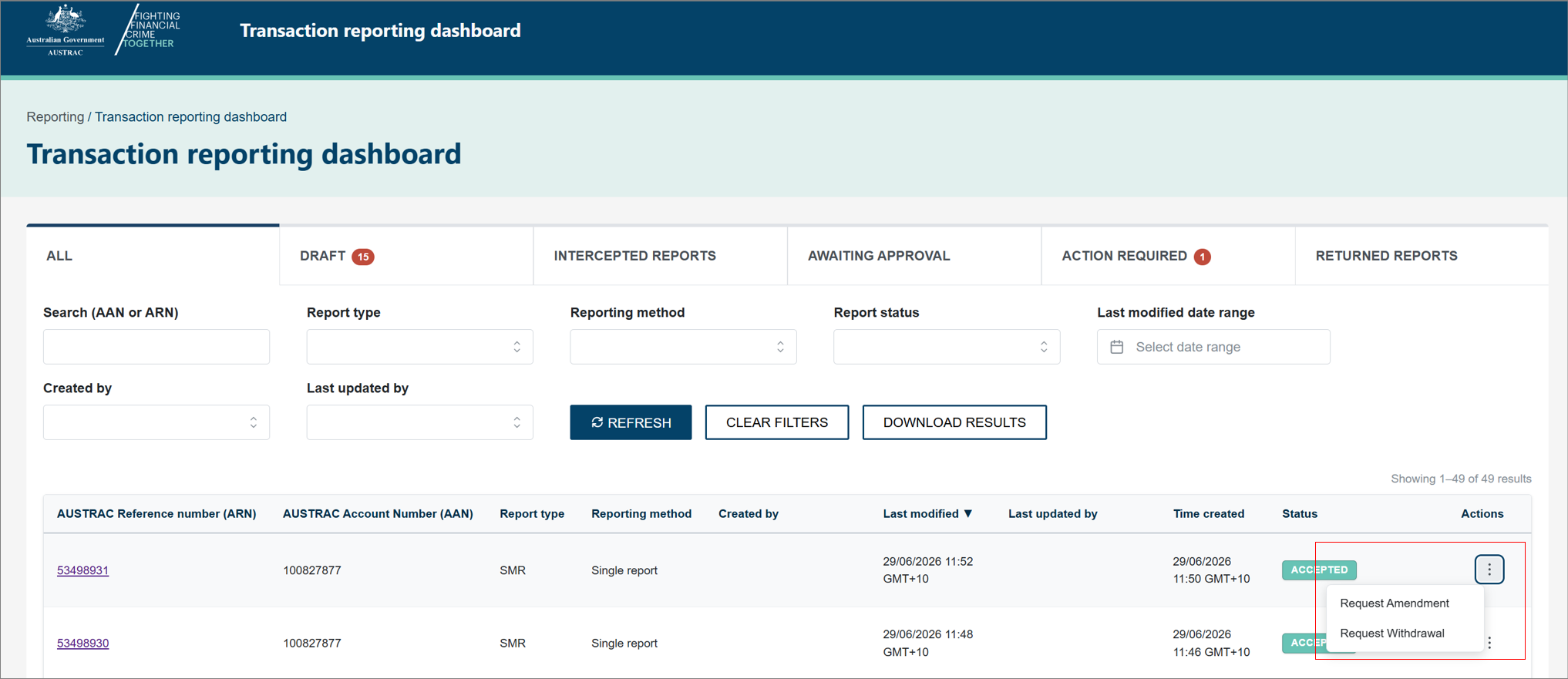
- In the Actions column, select the ellipsis (3 dots) to open the report.
- Select either:
- Request amendment
- Request withdrawal.
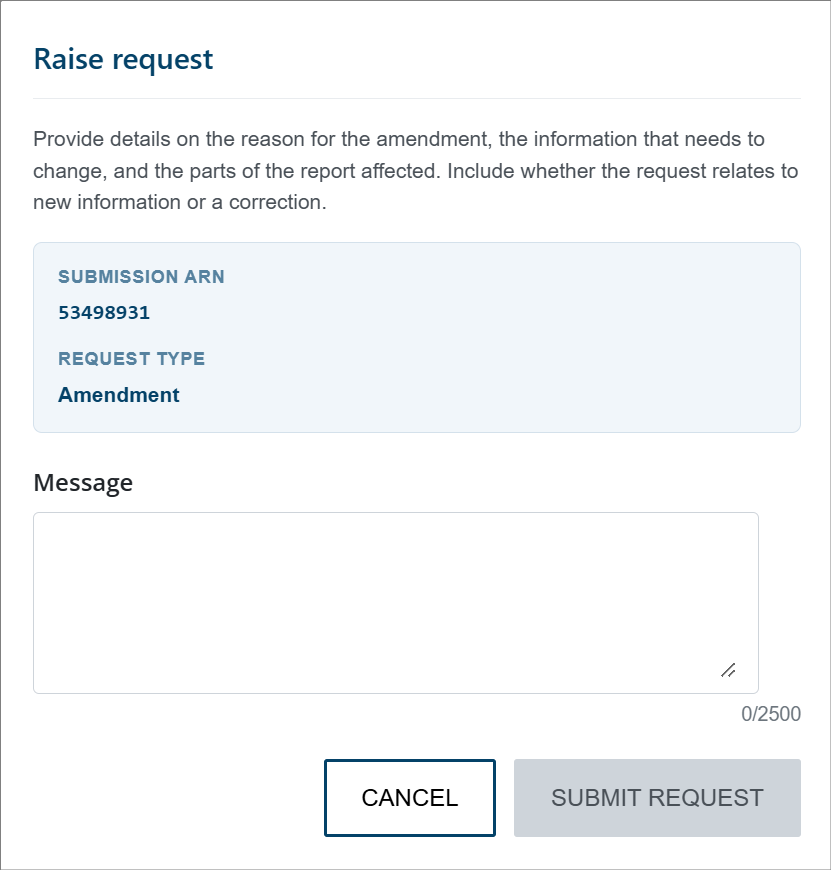
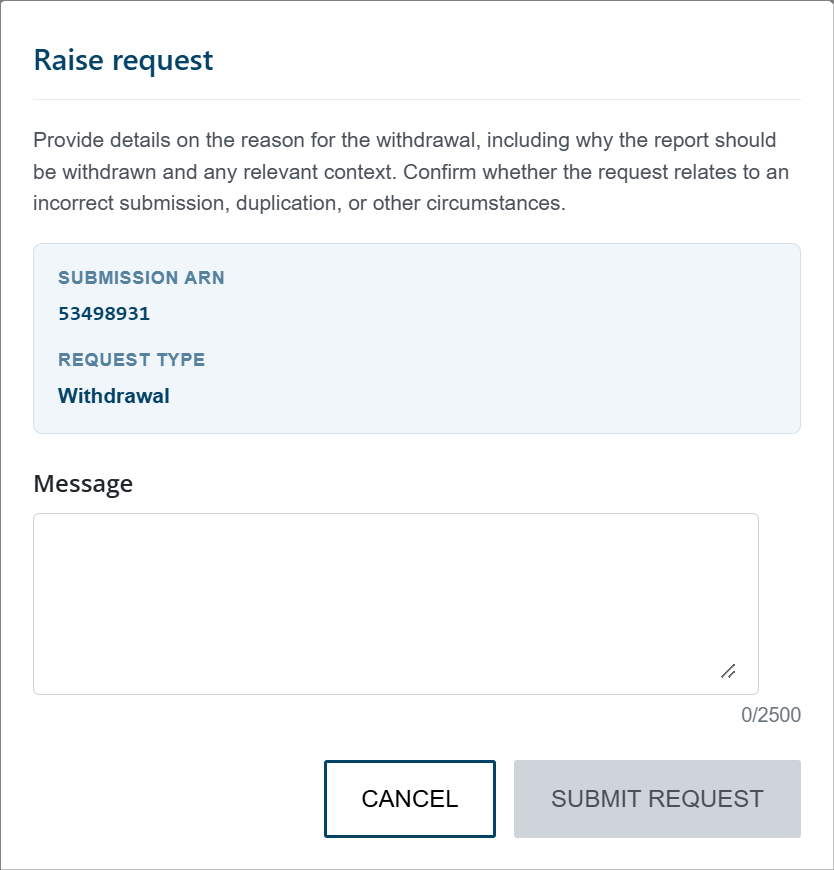
- A Raise request form will open. Enter the required details in the message field. Follow the instructions provided in the form:
- For an amendment, provide details of the information to be updated and the affected parts of the report.
- For a withdrawal, provide the reason for the request in the message field.
- Select SUBMIT REQUEST.
- The report status updates to either:
- Amendment requested
- Withdrawal requested.
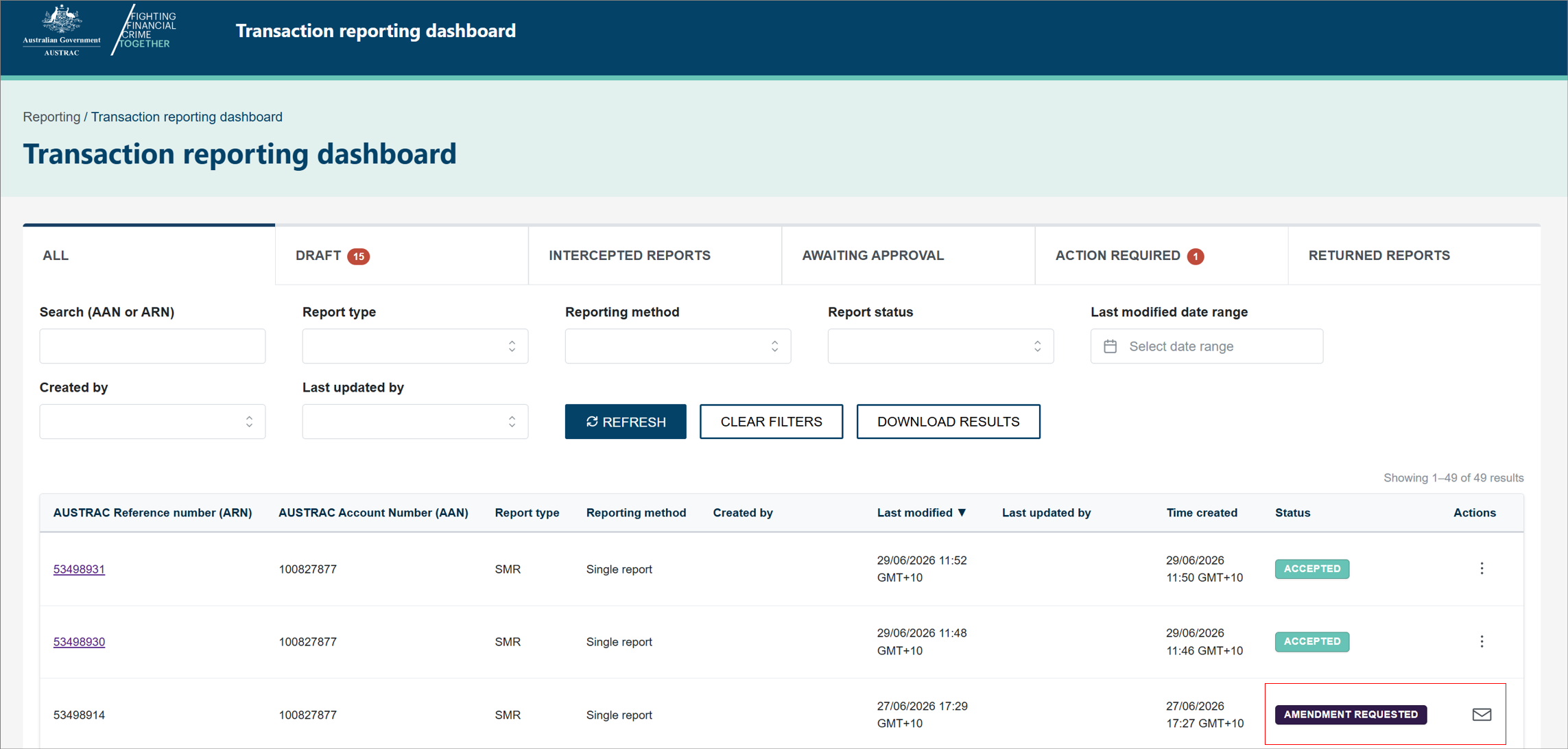
- Once a request has been submitted:
- The report is read-only.
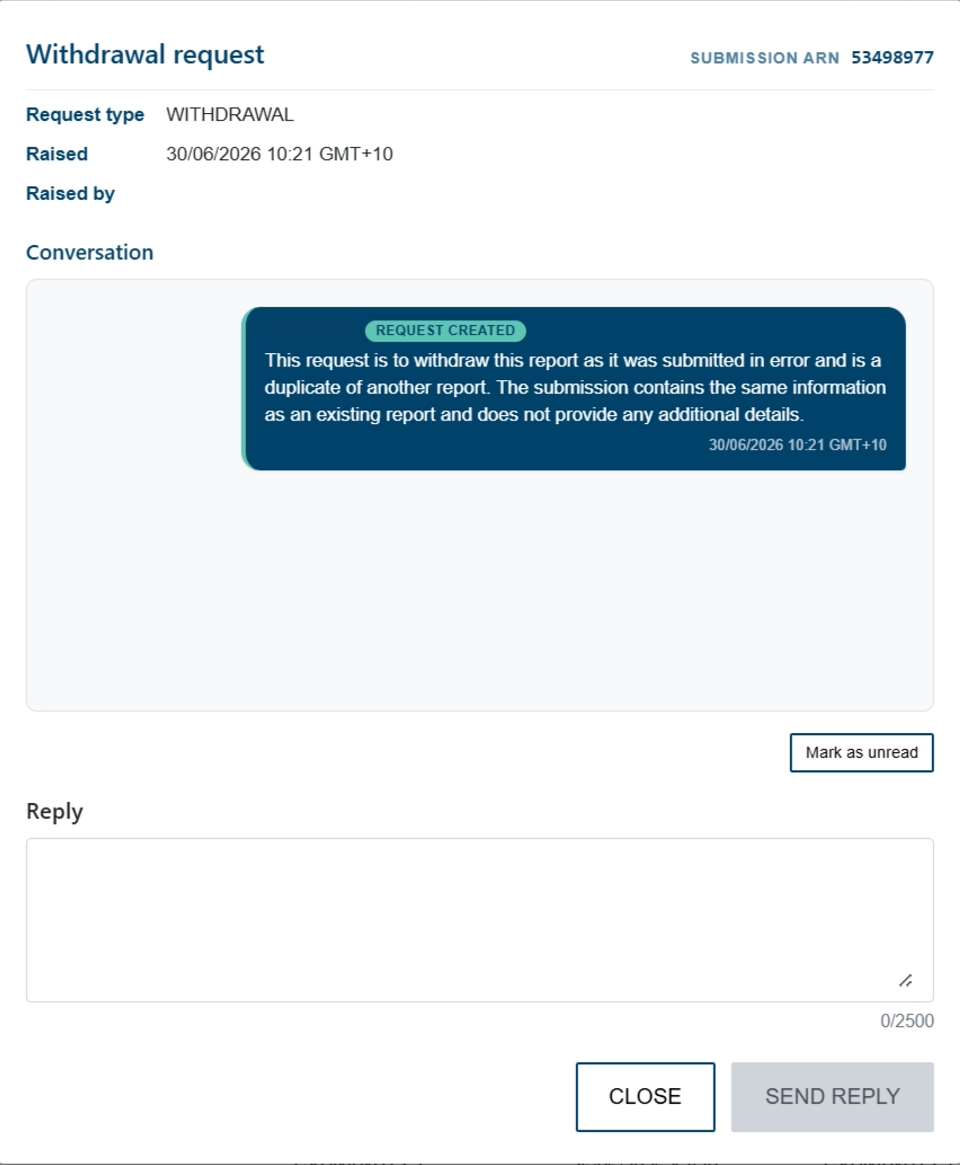
- Select the mail icon to view the request details and conversation history.
How to respond to an AUSTRAC message
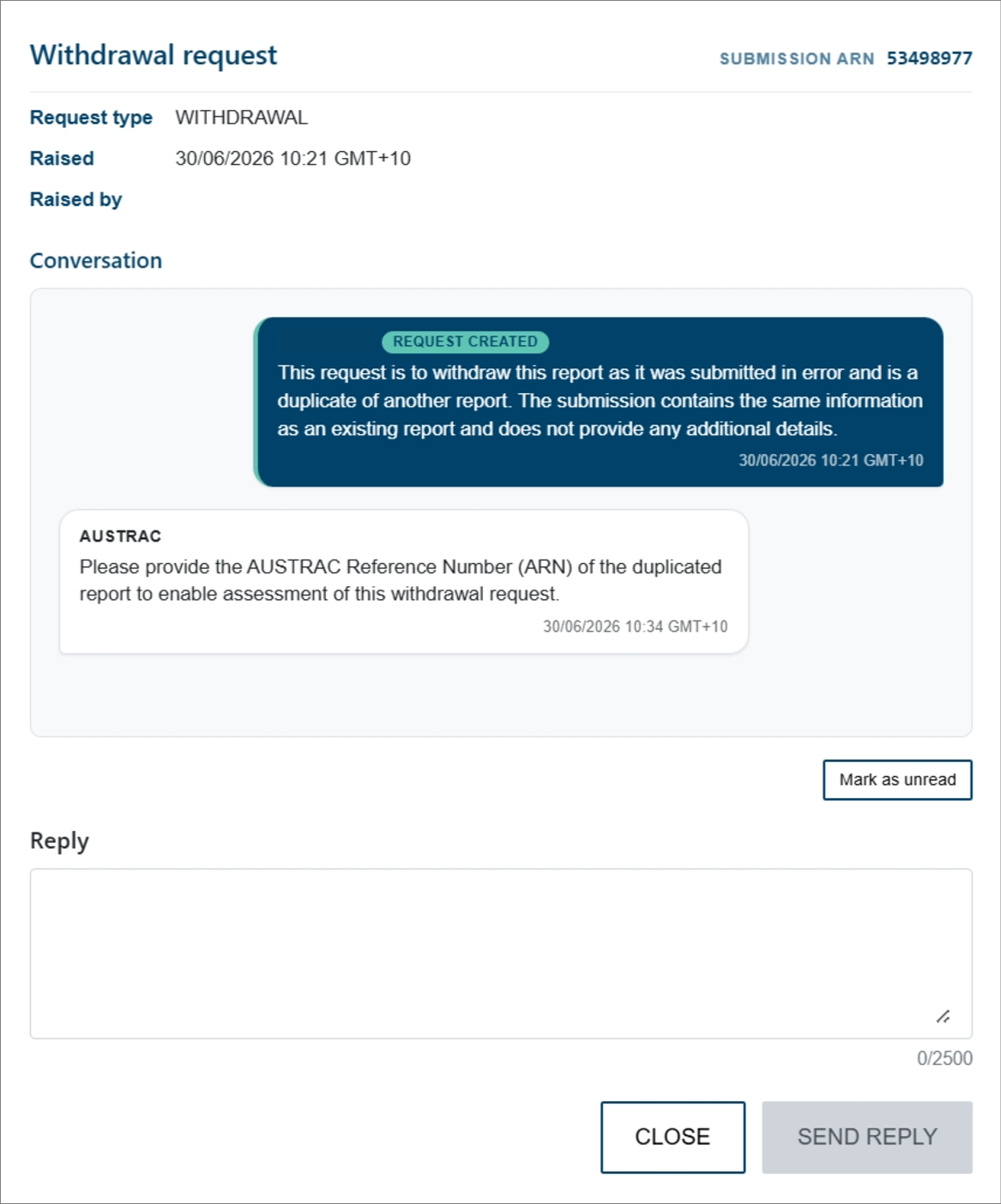
- Select the mail icon for the report.
- Review the request details and conversation history.
- If a response is required, enter your reply in the Reply field.
- Select SEND REPLY.
How to resubmit a returned report
A report returned by AUSTRAC for amendment will display a Returned status.
- Navigate to the RETURNED REPORTS section of the dashboard.
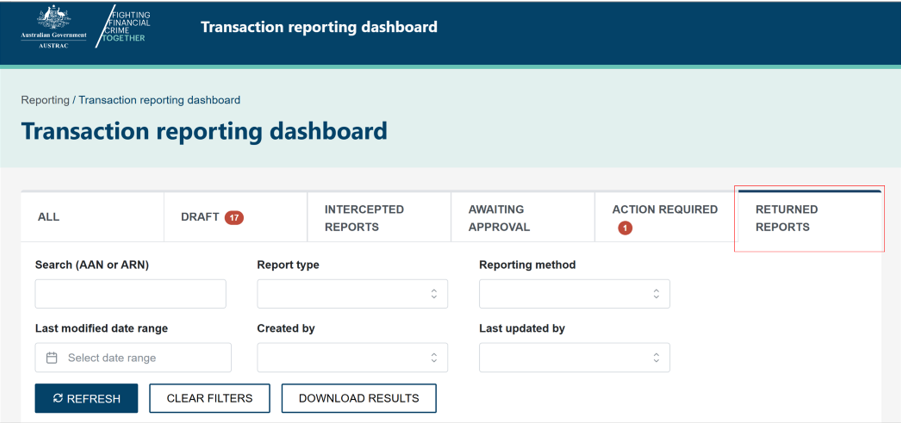
- Open the report and update as required.
- Select Review and respond.
- Select View previous messages to review the request details and conversation history.
- Select the appropriate response:
- Report is correct – no change required.
- Suspend report – non-cash transaction.
- Report is a duplicate.
- I have amended this report.
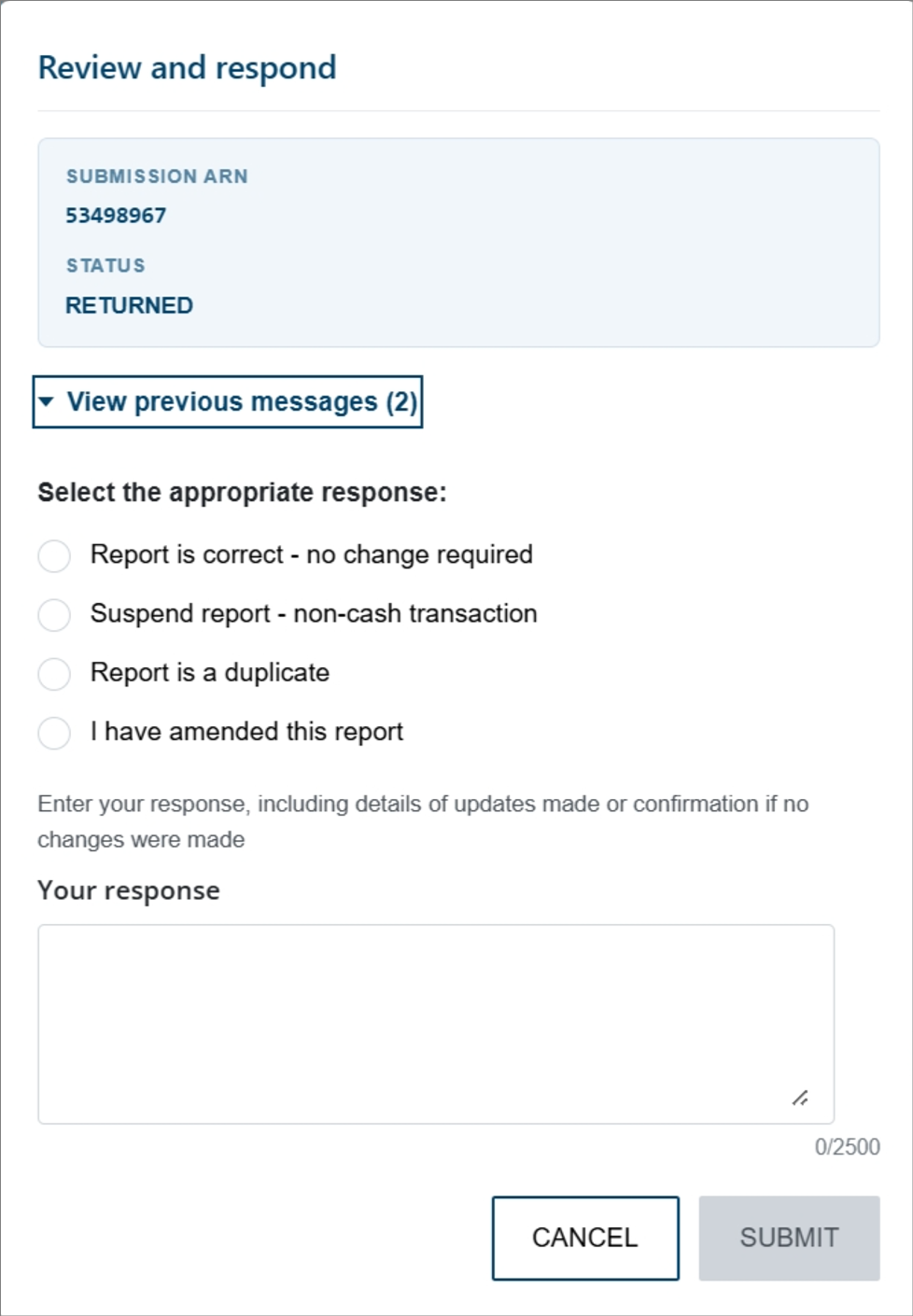
- Enter your response, including details of any updates made or confirmation that no changes were required.
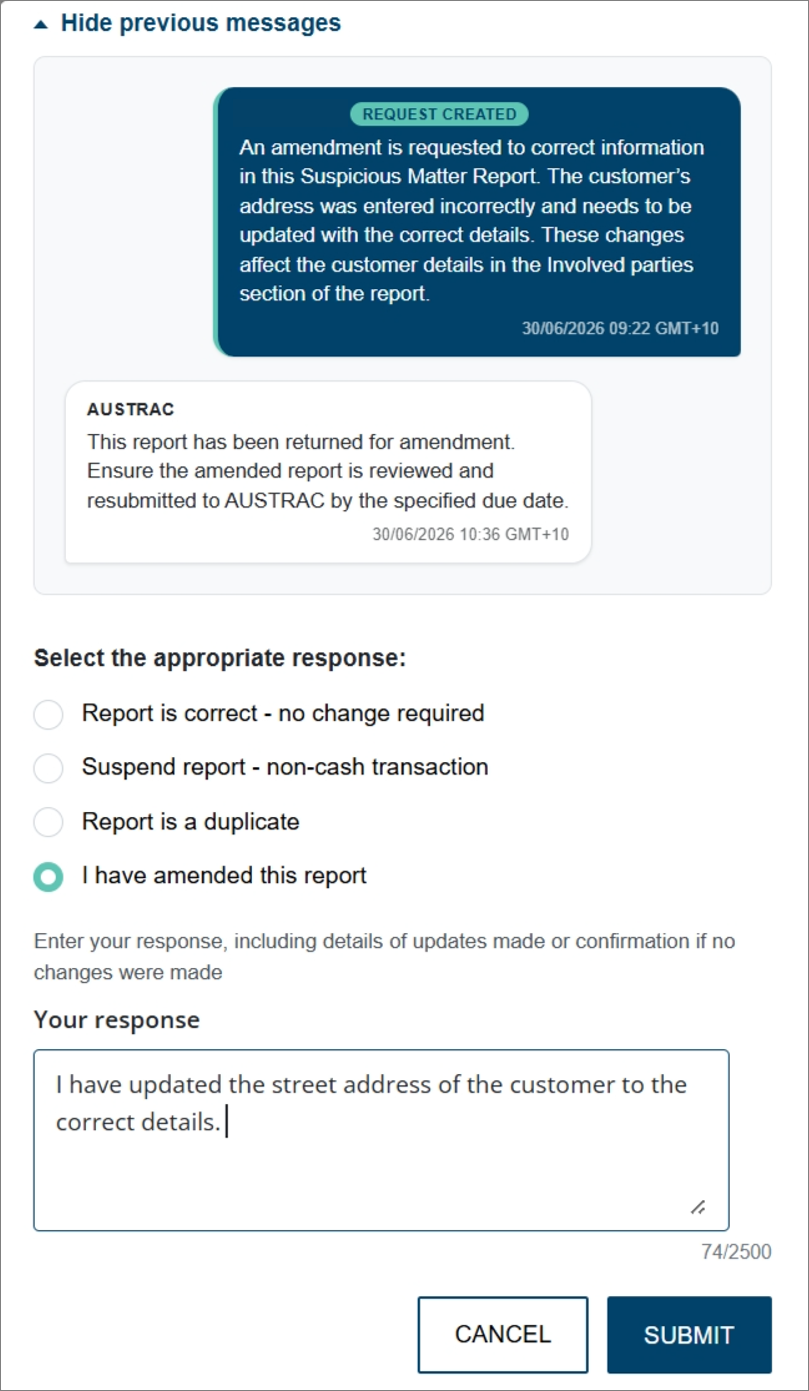
- Select SUBMIT.
This guidance sets out how we interpret certain Australian legislation, along with associated Rules and regulations. Australian courts are ultimately responsible for interpreting these laws and determining if any provisions of these laws are contravened.
The examples and scenarios in this guidance are meant to help explain our interpretation of these laws. They’re not exhaustive or meant to cover every possible scenario.
This guidance provides general information and isn't a substitute for legal advice. This guidance avoids legal language wherever possible and it might include generalisations about the application of the law. Some provisions of the law referred to have exceptions or important qualifications. In most cases your particular circumstances must be taken into account when determining how the law applies to you.